Session types and pricing
Session types are what customers can book, and pricing sets the booking lengths and what each one costs. Together with your opening hours they make your booking page.
Session types are what customers can book at your field, such as General Visit or Intro Session.
Pricing sets the booking lengths customers can choose, such as 30 minutes or 1 hour, and what each one costs.
Your time windows then say when each session type can be booked and which pricing applies, so you can charge more on Saturday mornings than on a weekday afternoon.
Every new field starts with one session type, General Visit, and one set of pricing, Standard, with 30 minutes at 6.00 and 1 hour at 12.00 in your currency, open every day from 06:00 to 20:00. Most fields only need to change the prices.
Where to find them
Section titled “Where to find them”Go to Fields in the bottom bar (the top bar on a computer), pick your field if you have more than one, then tap Booking setup. Session Types is the first card on the page. Pricing is further down, below Timing & Changeover and the customer details cards.
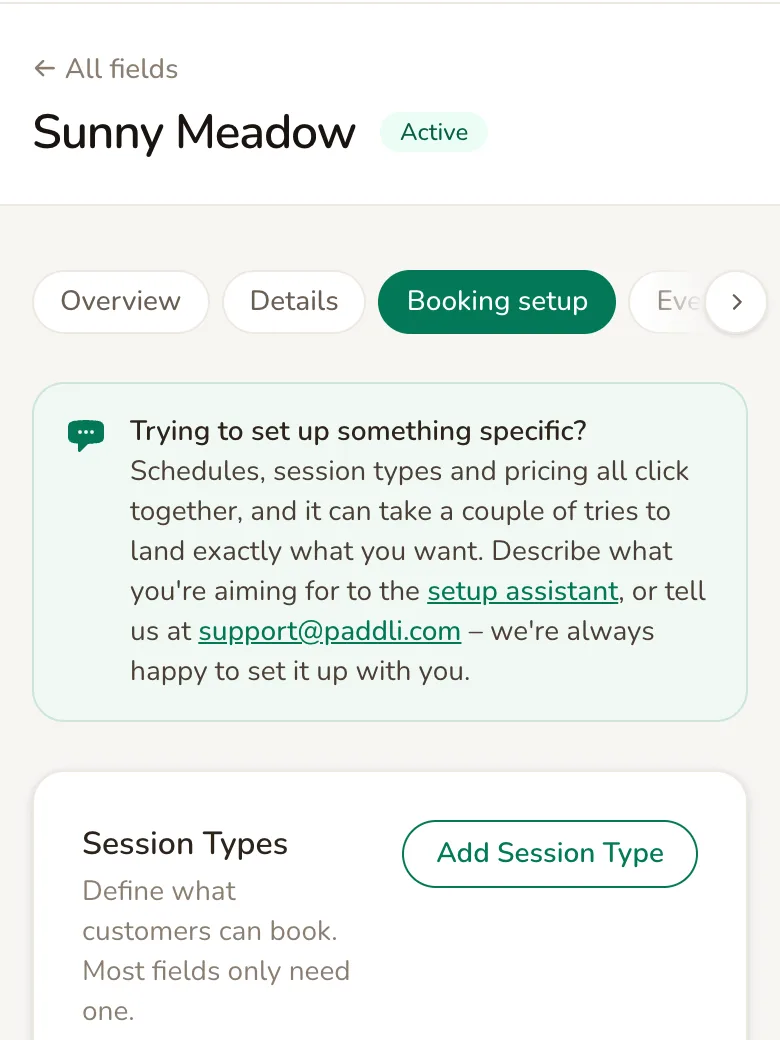
Each field has its own session types and its own pricing. If you have more than one field, set each one up separately.
Add a session type
Section titled “Add a session type”Tap Add Session Type and fill in the form.
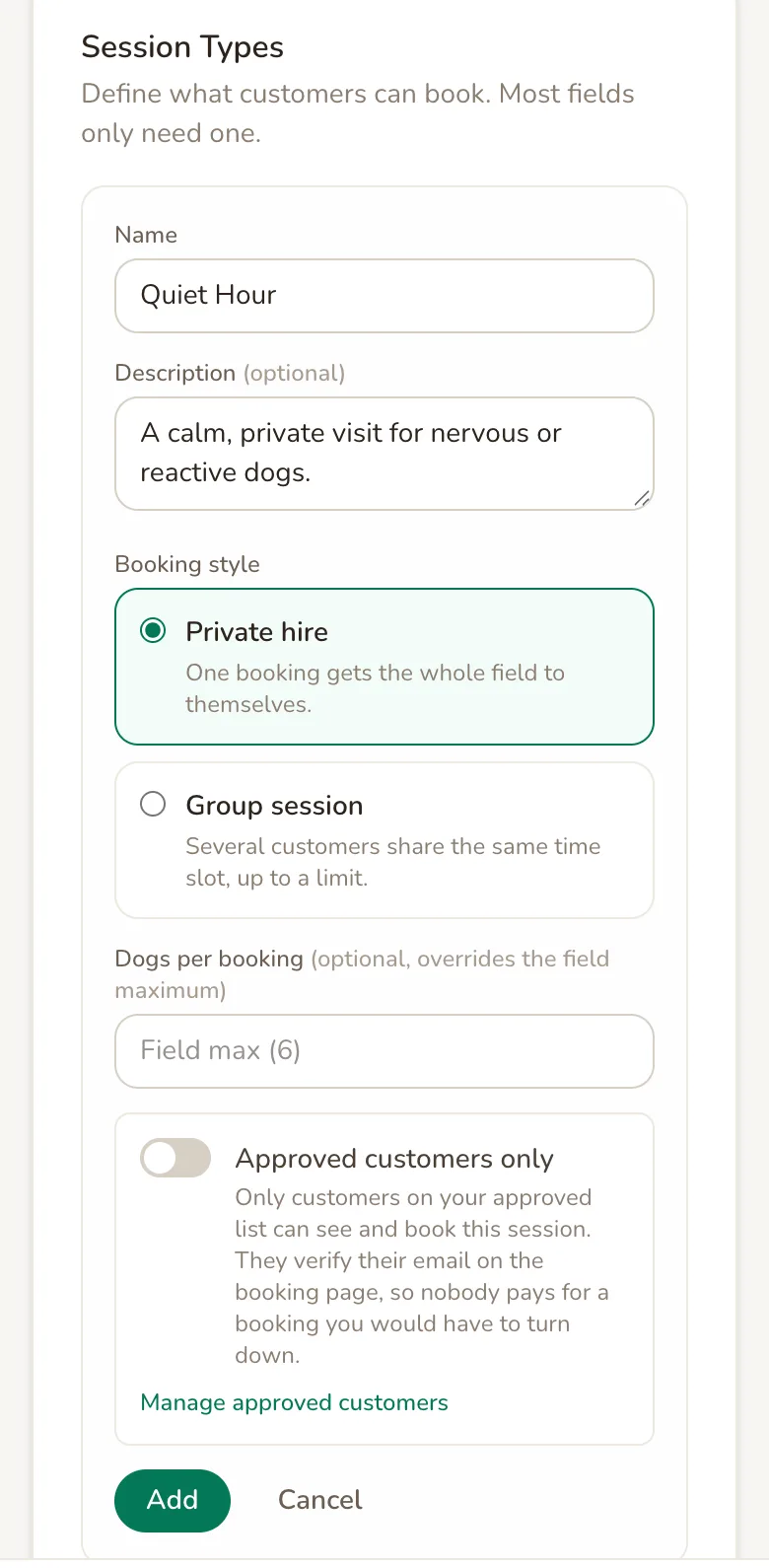
Name is what customers see on the booking page, on their confirmation and in their emails.
Description (optional) is shown to customers under the session type buttons on the booking page when they pick this one. Use it to say who the session is for or what is included, in up to 1,000 characters. Customers only see the buttons, and so the description, when there is more than one session type to choose from.
Booking style is Private hire unless you change it: one booking gets the whole field. Choose Group session to let several customers share the same time slot, then set Maximum bookings per session, from 2 to 50. A group session needs pricing with only one booking length, and customers cannot book it as a weekly subscription.
Dogs per booking is optional. Leave it blank to use your field’s maximum, or set a lower number for this session type only, for example 2 dogs per booking at a social session.
Approved customers only appears if approved customers are switched on for your account. Switch it on and only customers on your approved list can see and book this session type.
Tap Add to save it. A new session type is not on your booking page yet: it shows Not on your schedule yet until you add it to a time window (see Put them on your schedule).
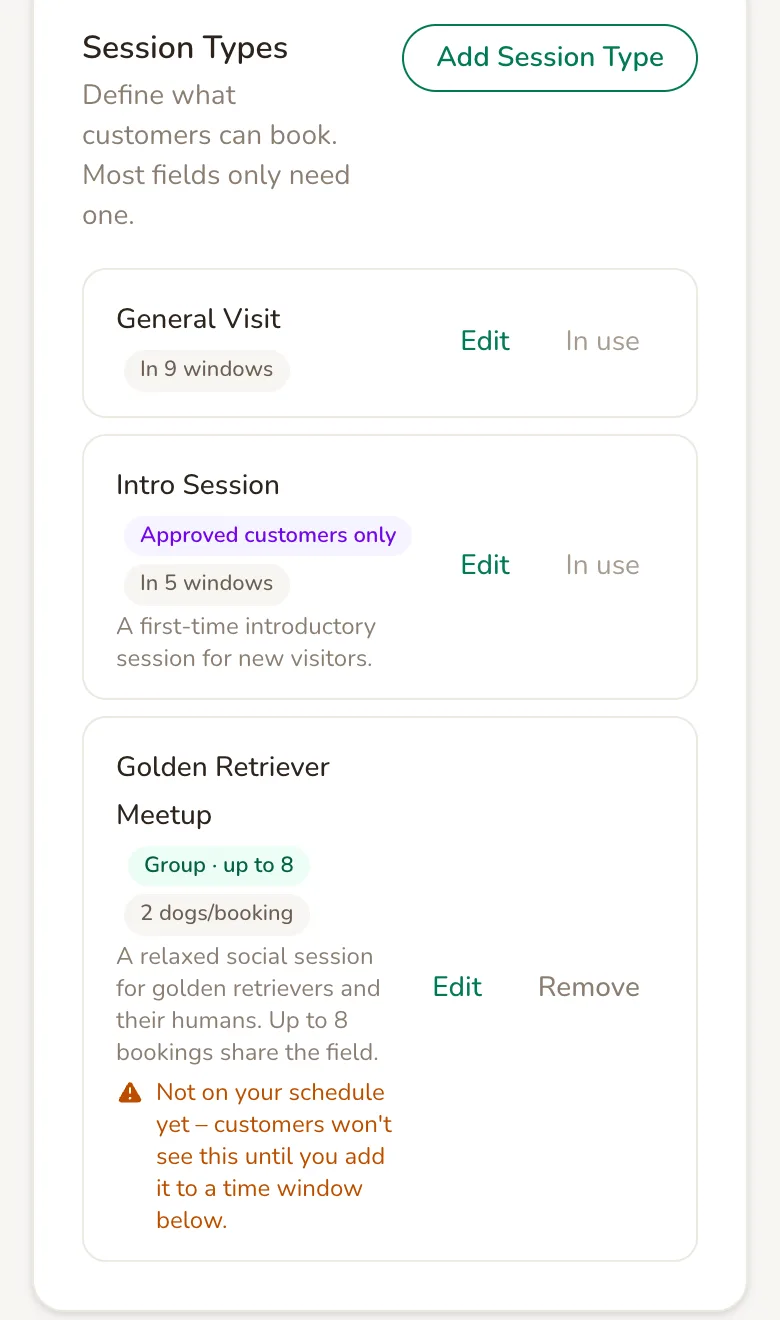
Each session type shows badges for how it is set up:
- In 9 windows is how many time windows it is in.
- Group · up to 8 marks a group session and how many bookings it takes.
- 2 dogs/booking shows a session type’s own dog limit.
- Approved customers only marks a session type only your approved customers can book.
Add pricing
Section titled “Add pricing”Tap Add Pricing in the Pricing card.
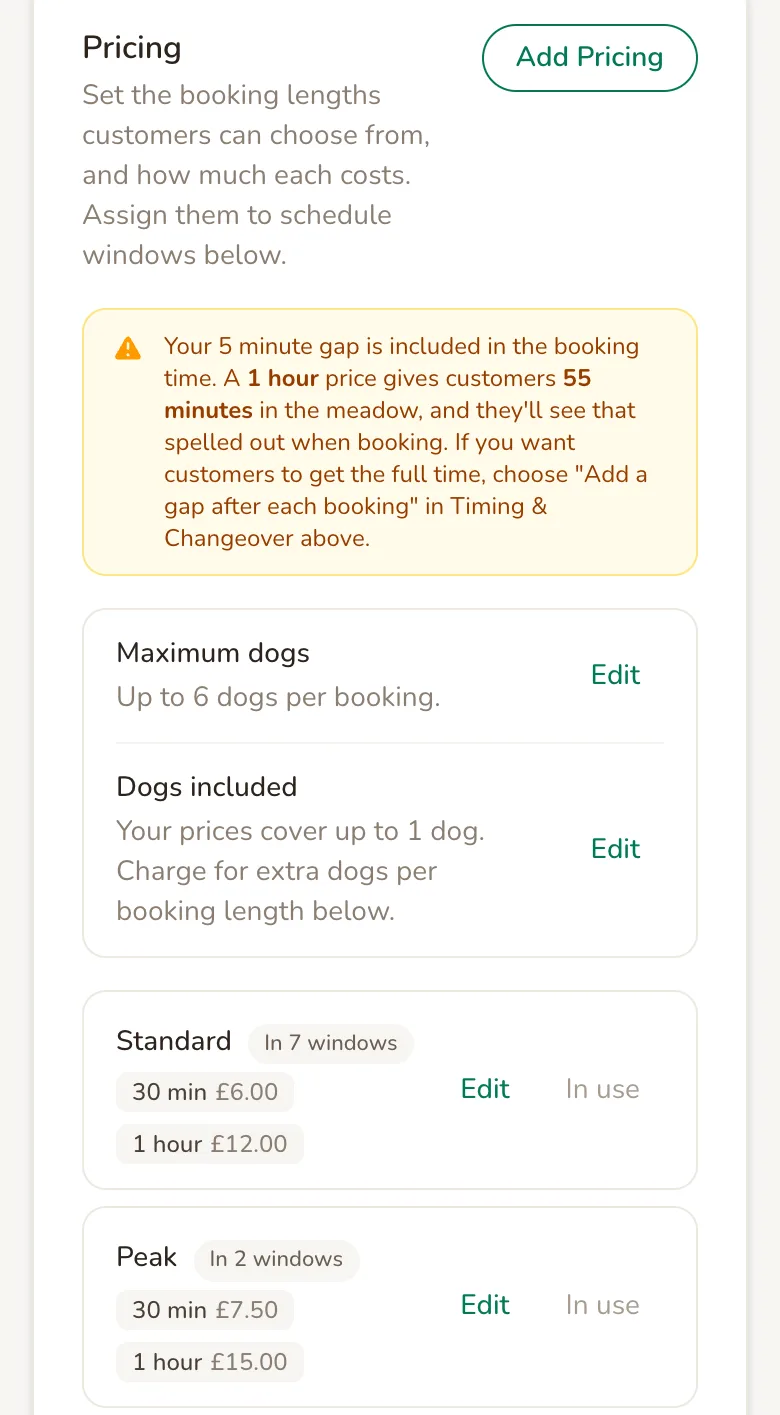
Name is for you: customers never see it.
Name it after when it applies, such as Standard, Peak or Off-peak.
Durations & prices is one row per booking length. Pick a length from 15 minutes to 8 hours and type the price for that length. Tap Add another duration for each extra length, and the cross at the end of a row to remove it. Each length can appear once in a set of pricing; if you add it twice, Paddli tells you “Each duration can only appear once per pricing preset.”
The price is for the whole booking, not per hour or per dog. It covers up to your Dogs included number (see below), and anything you charge for extra dogs or extras is added on top.
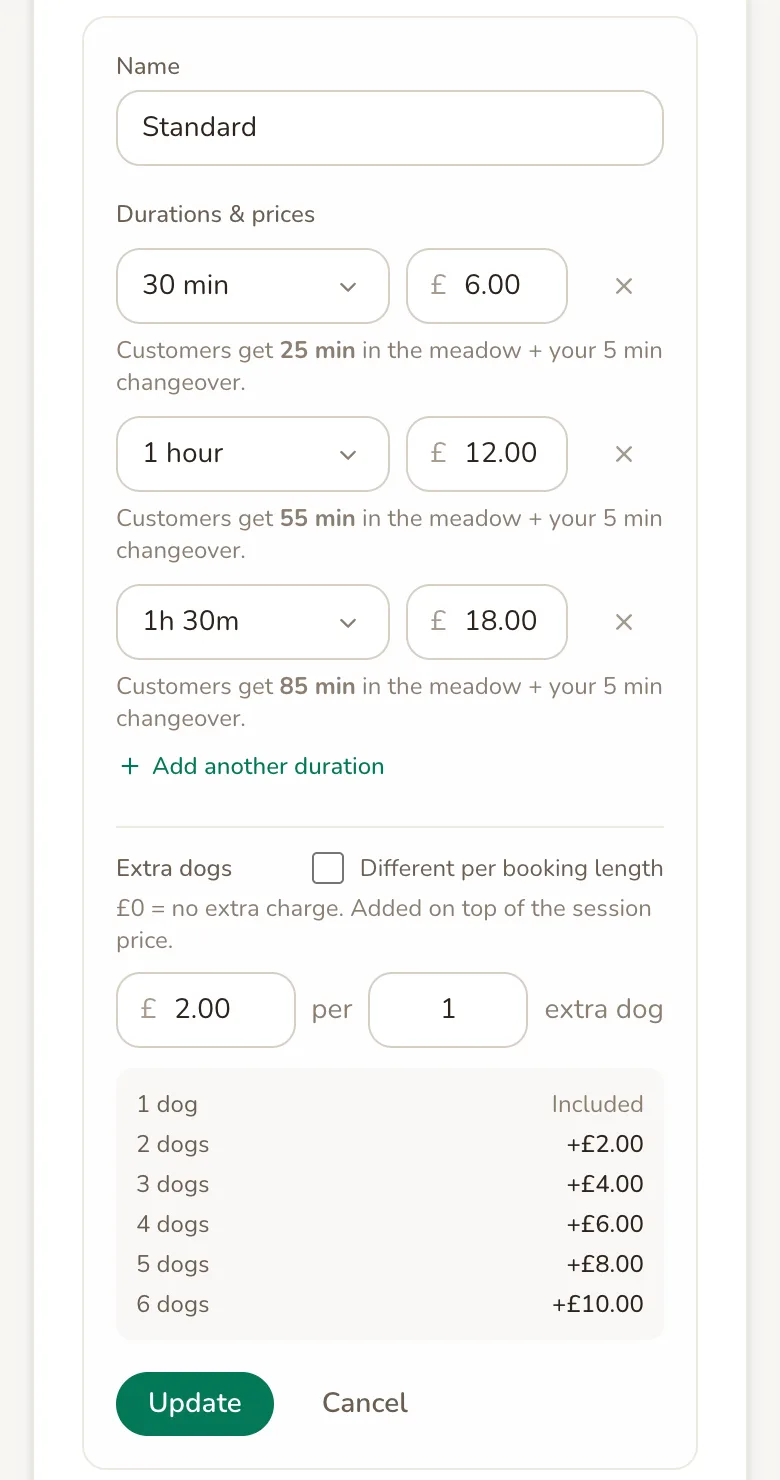
Tap Add, or Update when you are changing existing pricing, to save it.
When your changeover is inside the booking
Section titled “When your changeover is inside the booking”If you chose Include the gap within the booking time under Timing & Changeover, your changeover comes out of each booking length. A note at the top of the Pricing card and a line under each row tell you how long customers actually get: with a 5 minute gap, a 1 hour booking gives them 55 minutes in the field. Customers see this too, as 1 hour incl. 5 min changeover. Every length must be longer than your changeover. To give customers the full time they pay for, choose Add a gap after each booking in Timing & Changeover instead.
Dogs included and extra dogs
Section titled “Dogs included and extra dogs”Two settings at the top of the Pricing card apply to every price on the field. Tap Edit next to either one to change it.
Maximum dogs is the most dogs a customer can bring in one booking, from 1 to 50. It starts at 6 unless you changed it when you created the field.
Dogs included is how many dogs your prices cover, from 1 up to your maximum. It starts at 1. Dogs included cannot be more than Maximum dogs, so to raise both, raise Maximum dogs first.
To charge for dogs beyond those included, fill in Extra dogs in the pricing form: an amount per a number of extra dogs. Leave it at 0.00 for no extra charge. A preview under it shows what each number of dogs adds.
- £2.00 per 1 extra dog with 1 dog included means 2 dogs pay £2.00 more, 3 dogs £4.00 more, and so on.
- £3.00 per 2 extra dogs charges for every started group of 2: 1 or 2 extra dogs pay £3.00 more, 3 or 4 extra dogs pay £6.00 more.
The charge is the same for every booking length unless you tick Different per booking length, which gives each row its own extra dog charge. That box only appears when your dogs included is lower than your maximum.
Put them on your schedule
Section titled “Put them on your schedule”Session types and pricing do nothing until they are in a time window. Each window on your schedule lists the session types customers can book in it and the pricing that applies to each one. Using different pricing in different windows is how you charge more at busy times, such as Peak on Saturday and Sunday mornings and Standard the rest of the week. Opening hours explains how to set up windows.
Until a session type or a set of pricing is in at least one window, it shows a Not on your schedule yet warning on the Booking setup page.
Customers can choose from every booking length in the pricing used for that session type, across all its windows. A length that is only in some of that pricing can only be booked in the windows that use it. Customers start on the shortest length unless you choose another one under Pre-selected duration in Timing & Changeover.
What customers see
Section titled “What customers see”On your booking page, customers pick a session type under What would you like to book? and a length under How long?, then a date. Each of these only appears when there is more than one to choose from. Every time slot shows its price.
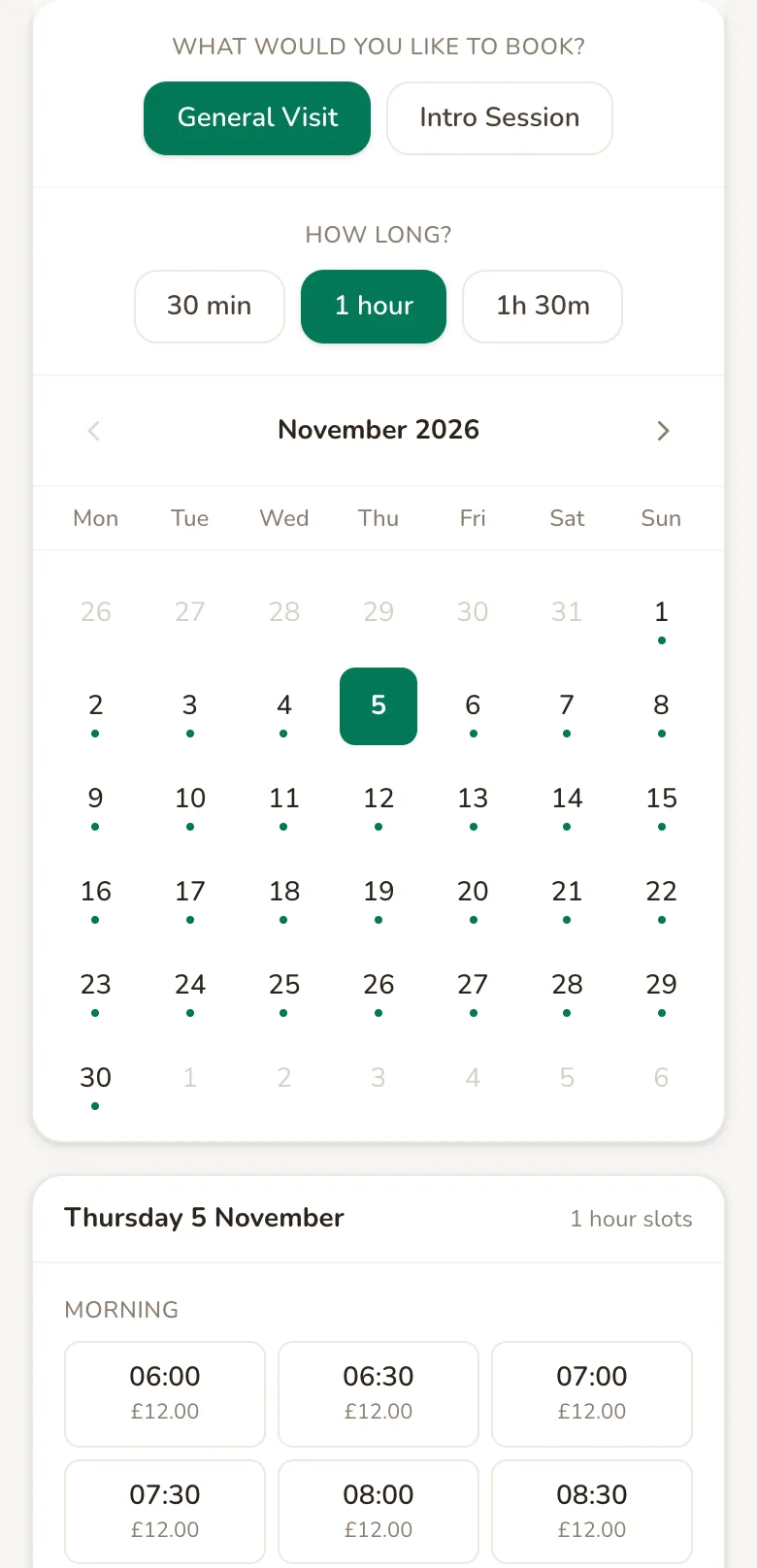
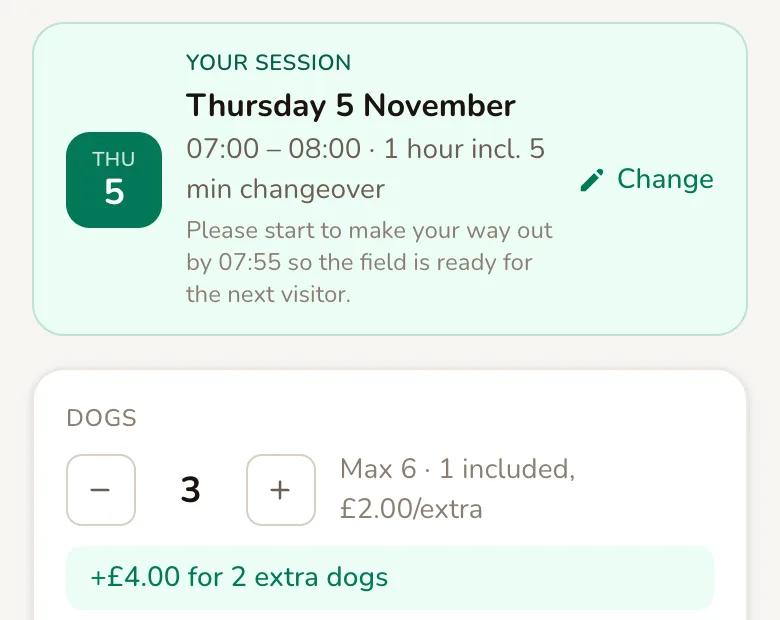
After choosing a time, customers see Your session with the date, time and length, then set how many dogs they are bringing. If you charge for extra dogs, the line next to the counter shows how many are included and what each extra dog costs, and a green line shows the extra charge.
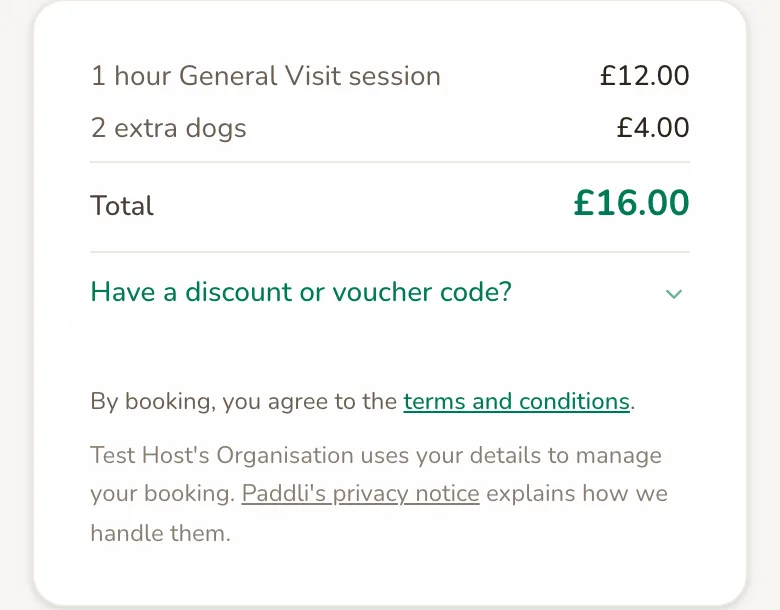
The summary lists the session and any extra dogs separately, so customers can see what they are paying for.
The confirmation page and email show the session type’s name and the booking length. On your organisation’s page and your Paddli website, each field shows From its lowest price, taken only from pricing that is on your schedule.
You see the session type on each booking’s detail page, with a Pricing breakdown of what the customer paid.
Change or remove them
Section titled “Change or remove them”Tap Edit next to any session type or set of pricing to change it. Changes apply to new bookings straight away.
- Bookings already made keep the price the customer paid and their original length.
- Weekly subscriptions keep the price they were set up at. Changing an existing subscriber’s price is not possible yet.
- Group sessions cannot change between Private hire and Group session while upcoming group sessions have attendees.
To remove a session type, tap Remove and confirm.
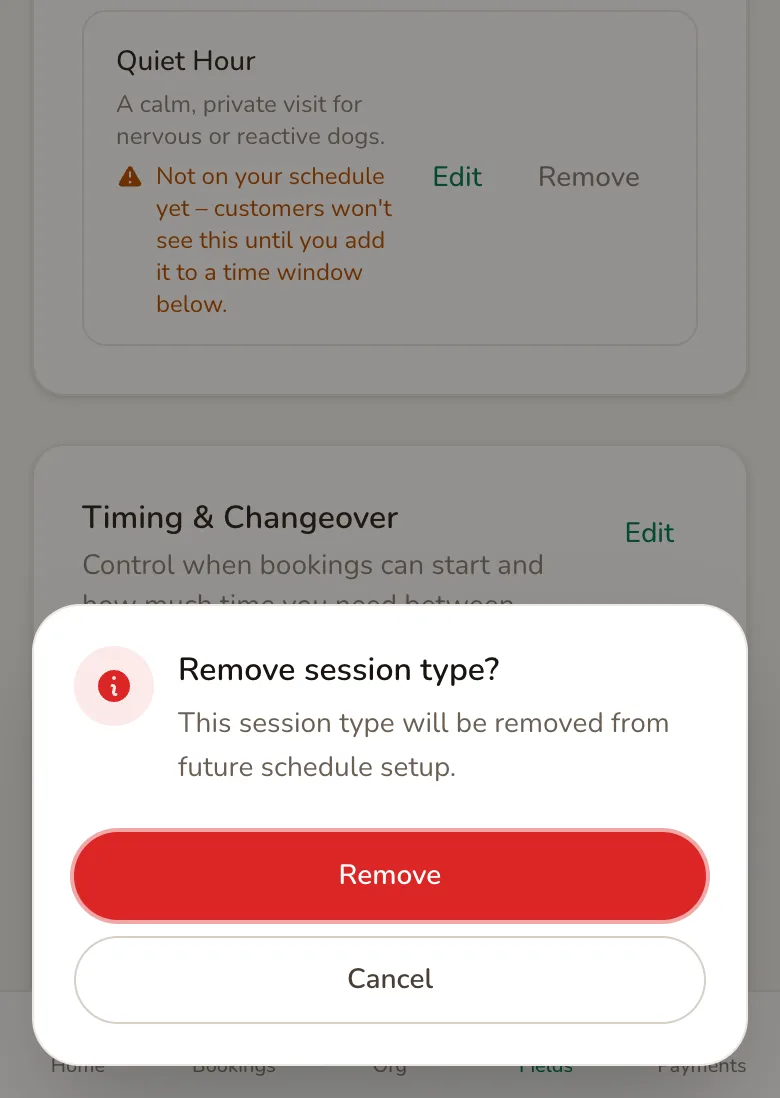
You can only remove a session type or a set of pricing when it is not in any time window. Otherwise it shows In use instead of Remove: take it out of your windows first. A session type that customers have weekly subscriptions for cannot be removed until those subscriptions are cancelled. Each field always keeps at least one session type and one set of pricing, so the last of each has no Remove option.
Removing a session type does not cancel bookings already made for it, and they keep its name. Removing pricing does not change what anyone has already paid.
Ideas for using session types and pricing
Section titled “Ideas for using session types and pricing”- Peak and off-peak. Keep Standard for weekdays and add Peak with higher prices for weekend mornings, when your field fills up first.
- A first visit. Add an Intro Session with a description of what happens on a first visit, and its own pricing with only a 30 minute length.
- Longer visits for less per minute. Offer 30 minutes, 1 hour and 2 hours, with the longer lengths cheaper per minute, to encourage bigger bookings.
- Families with several dogs. Include 2 dogs in the price and charge per extra dog beyond that, so a one-dog walker and a three-dog family each pay a fair price.
Related
Section titled “Related”- Opening hours sets your time windows, which decide when each session type can be booked and at which prices.
- Discount codes work on any session type at the fields you choose. They cannot be limited to one session type yet.
- Volume discounts come off the total first, then a discount code, then a gift voucher last. Extra dog charges and extras are part of the total before any discount.
- Extras, further down the Booking setup page, are offered with every session type at the field.
- Weekly subscriptions are priced from the slot the customer subscribes to, with any subscription discount you offer taken off.
- Rescheduling: if customers can move their own bookings, they can only move to a slot with the same price, so a weekday booking cannot be moved into a Peak slot.
- Manual bookings let you choose the session type and length, but do not take a payment.
- The setup assistant, bottom right of the Booking setup page, can add, change and remove session types and pricing for you.
Frequently asked questions
If I put my prices up, do customers who have already booked pay more?
No. Each booking keeps the price the customer paid when they booked it, so a price change only affects bookings made after you save it. Nobody is charged extra and nobody is refunded the difference.
Do my weekly subscribers pay the new price after I change my prices?
No. A weekly subscription keeps the price it was set up at, so existing subscribers carry on paying their original weekly amount. Changing their price is not possible yet. Customers who subscribe after your change pay the new price.
Is the price per dog or per booking?
Per booking. Each price covers up to the number of dogs you set under Dogs included, which is 1 unless you change it. You can add a charge for each extra dog, or for each group of extra dogs, on top of the session price, and set the most dogs allowed in one booking with Maximum dogs.
How do I charge more at weekends or at busy times?
Create a second set of pricing, for example Peak, with higher prices for the same booking lengths. Then use Peak in the time windows you want it to apply to, such as Saturday and Sunday mornings, and keep Standard everywhere else. Customers see the right price on each slot.
Can I offer a free session?
Yes. Set the price to 0.00 for that booking length. If the customer's total comes to nothing, with no extras or extra dog charges on top, the booking is confirmed without taking a payment.
Why can't customers see my new session type?
A session type only appears on your booking page once it is in at least one time window, and your Booking setup page shows Not on your schedule yet under any that are not. Add it to a window under Opening hours on the same page. If it shows an Approved customers only badge, only customers on your approved list can see it.
Can I hide a session type for a while without deleting it?
There is no hide switch yet. Take the session type out of every time window instead and it disappears from your booking page, while staying on your Booking setup page ready to add back later. Bookings already made for it are not affected.
Can I change the order session types appear in?
Not yet. Session types appear in the order you added them, on your Booking setup page and on your booking page. If the order matters, Jamie or Helen can help you set them up again in the order you want.