Cancellations and refunds
Decide whether customers can cancel or move their own bookings and how much notice they must give, see what happens to the money when they do, and give a refund yourself when you need to.
Each field has its own rules for what customers can do with their bookings: whether they can cancel or move them online, and how much notice they must give. When a customer cancels in time, Paddli refunds them automatically, and you can also give a full or part refund yourself from the order page.
Where to find it
Section titled “Where to find it”Go to Fields in the top bar, tap your field, then tap Details. Scroll down to Cancellations and Changes.
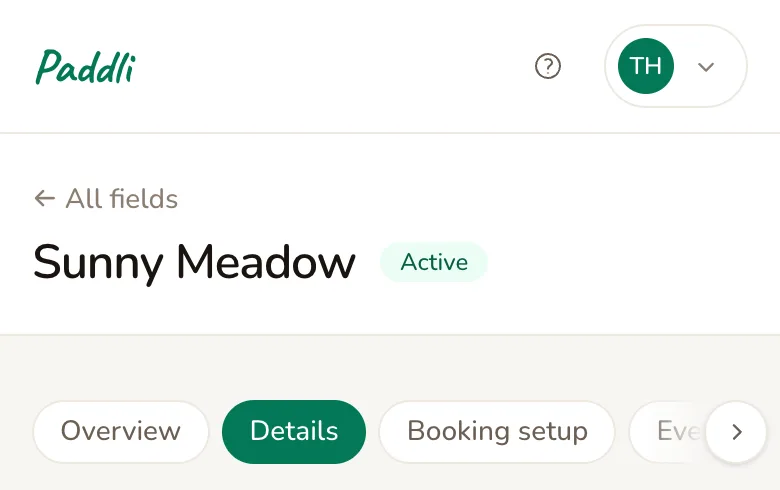
If you have more than one field, set each field’s rules on its own Details page. When you add a new field, the same settings are on the Add field form, under Booking Policies.
Set your cancellation rules
Section titled “Set your cancellation rules”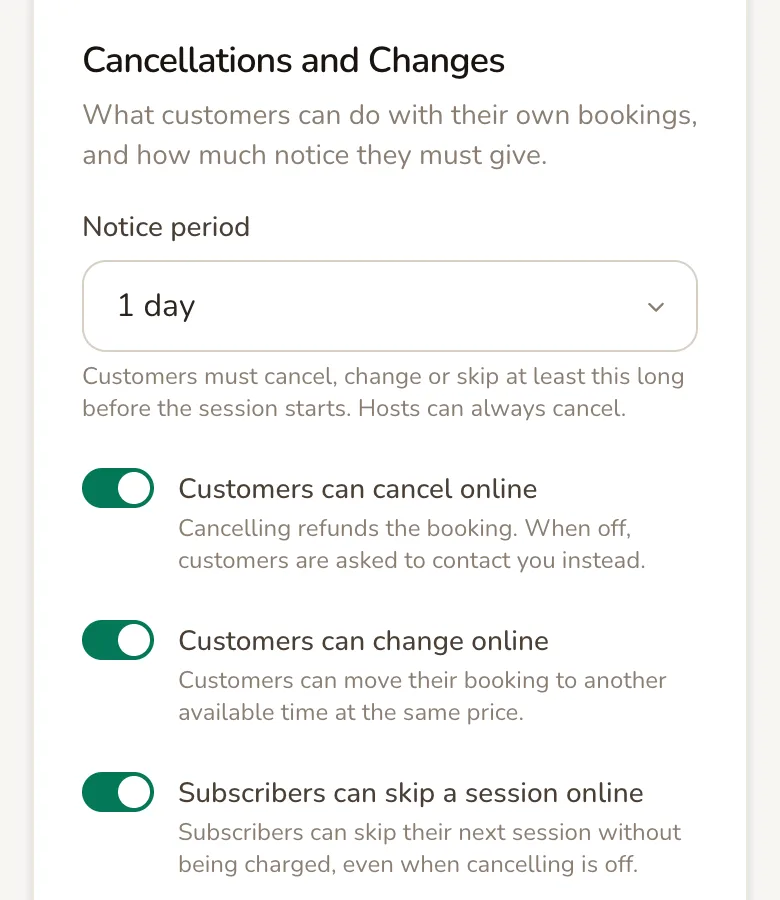
Notice period is how long before a session starts customers must cancel, change or skip it. Choose No restriction, or a time from 1 hour to 7 days. With No restriction, customers can cancel or change right up to the start time. After the notice period begins, customers cannot cancel or change online, but you can still cancel at any time.
Customers can cancel online lets customers cancel a booking themselves, and the booking is refunded. When it is off, customers are asked to contact you instead.
Customers can change online lets customers move their booking to another available time at the same price.
Subscribers can skip a session online lets weekly subscribers skip their next session without being charged, even when cancelling is off.
All three switches are on for a new field, and the notice period starts at No restriction. Tap Save Changes at the bottom of the page. Your rules apply straight away to every upcoming booking at that field, including bookings made before you changed them.
Tell customers your rules before they book
Section titled “Tell customers your rules before they book”Customers are not shown your notice period before they book: Not yet. They see it on the Manage Booking page after booking. To tell them up front, write your cancellation rules in the Policy box near the top of the same Details page. Customers see your policy on the booking form, and you can make them tick to accept it with Require policy confirmation.
What customers see
Section titled “What customers see”Customers manage a booking from the Manage this session link in their confirmation email, or Manage this booking in their reminder email. They can also tap Manage my booking at the bottom of your booking page and enter their email address, and Paddli emails them a secure link.
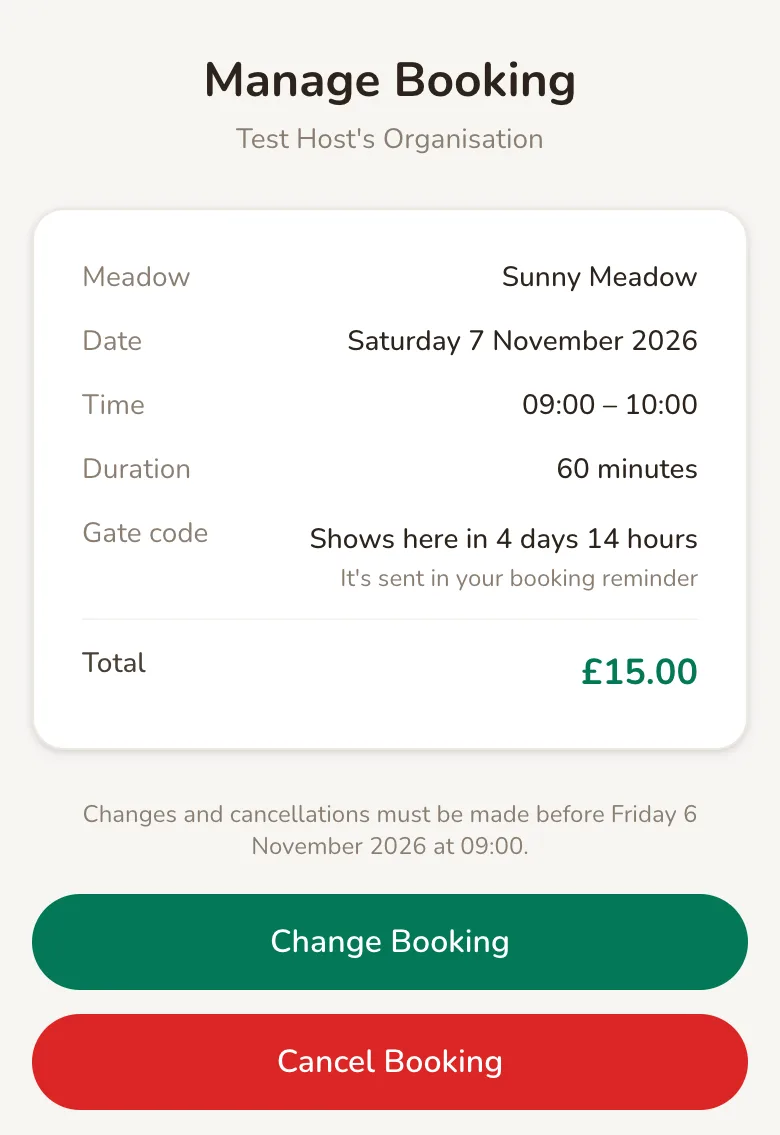
When you have a notice period, the page says when the customer must make changes by, such as Changes and cancellations must be made before Friday 6 November 2026 at 09:00. The buttons they see depend on your switches: Change Booking, Cancel Booking, or both. If cancelling is off, the page says Need to cancel? Please contact followed by your organisation name.
When a customer cancels
Section titled “When a customer cancels”The customer taps Cancel Booking, then Cancel booking to confirm.
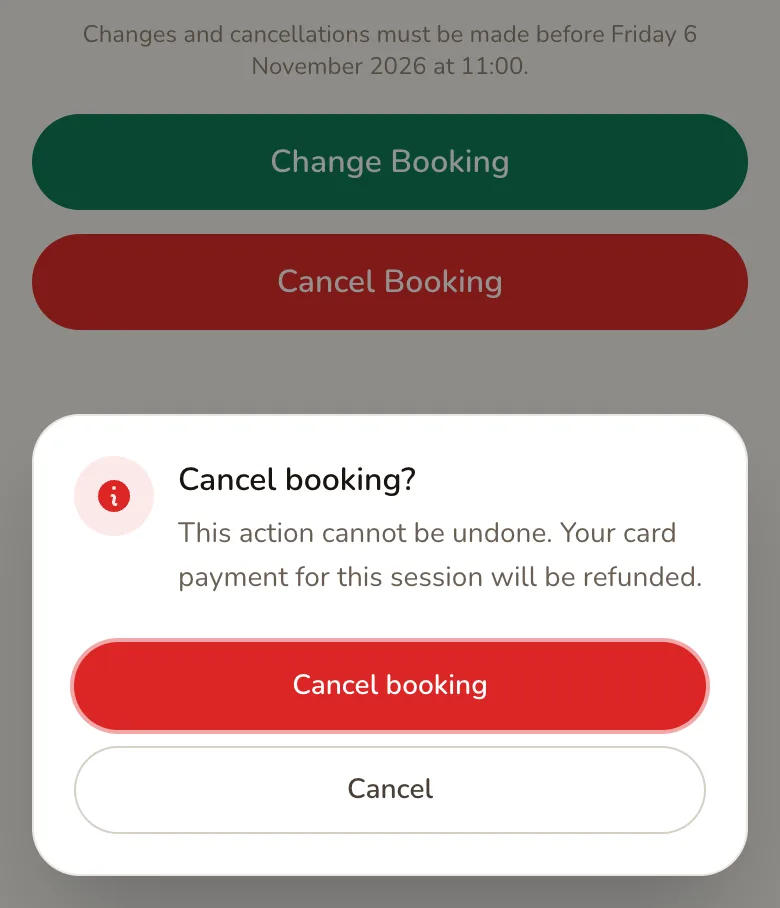
The customer is refunded in full for that session, straight away:
- the amount they paid on their card, after any discount, goes back to that card;
- any part they paid with a gift voucher goes back onto the voucher;
- if one payment covered several sessions, only the cancelled session is refunded.
The customer gets a Booking Cancelled email that says their refund should arrive within 7 days. You get a Booking Cancelled email too, if that alert is on under Organisation, then Notifications. The time slot becomes free for someone else to book.
A refund of part of the money, such as 50% for late cancellations: Not yet. Use your notice period instead, so late cancellations come to you and you decide.
When a customer changes their booking
Section titled “When a customer changes their booking”The customer taps Change Booking, chooses a New date, picks one of the Available times and taps Confirm New Time.
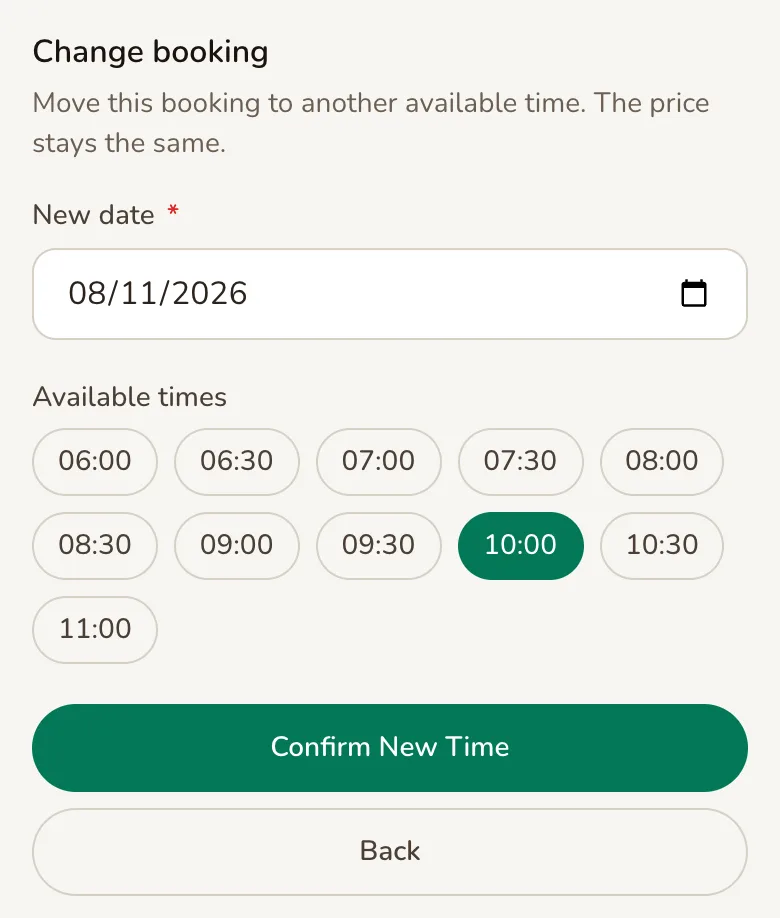
Only times at the same price as the original booking are offered, so no money changes hands. The new date can be as far ahead as your field’s Forward booking limit. The customer gets a Booking Rescheduled email, and so do you if the Booking Rescheduled alert is on.
Customers cannot move weekly subscription sessions or event bookings online. Moving to a time with a different price: Not yet. You can move a booking yourself with Reschedule on its booking page, and the price stays the same.
After the notice period has started
Section titled “After the notice period has started”Once the notice period has started, the customer sees Changes No Longer Available instead of the buttons.
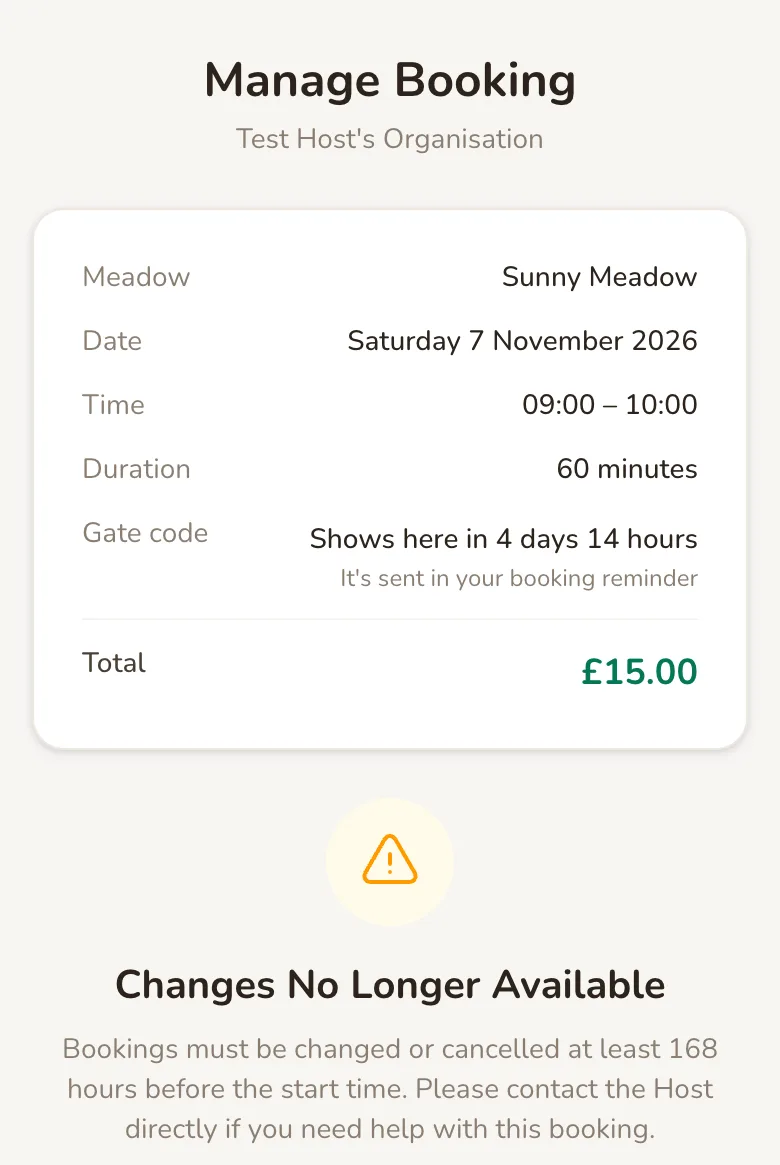
The message gives your notice period in hours, so 7 days shows as 168 hours. If the customer gets in touch, you can still cancel the booking, which refunds it in full, or give part of the money back with Issue refund, which is explained below.
If you turn off both Customers can cancel online and Customers can change online, customers see Contact the Host with your email address and phone number instead.
See who cancelled and what was refunded
Section titled “See who cancelled and what was refunded”Tap Bookings in the top bar, then Cancelled, to see every cancelled booking. Open one to see who cancelled it and the refund.
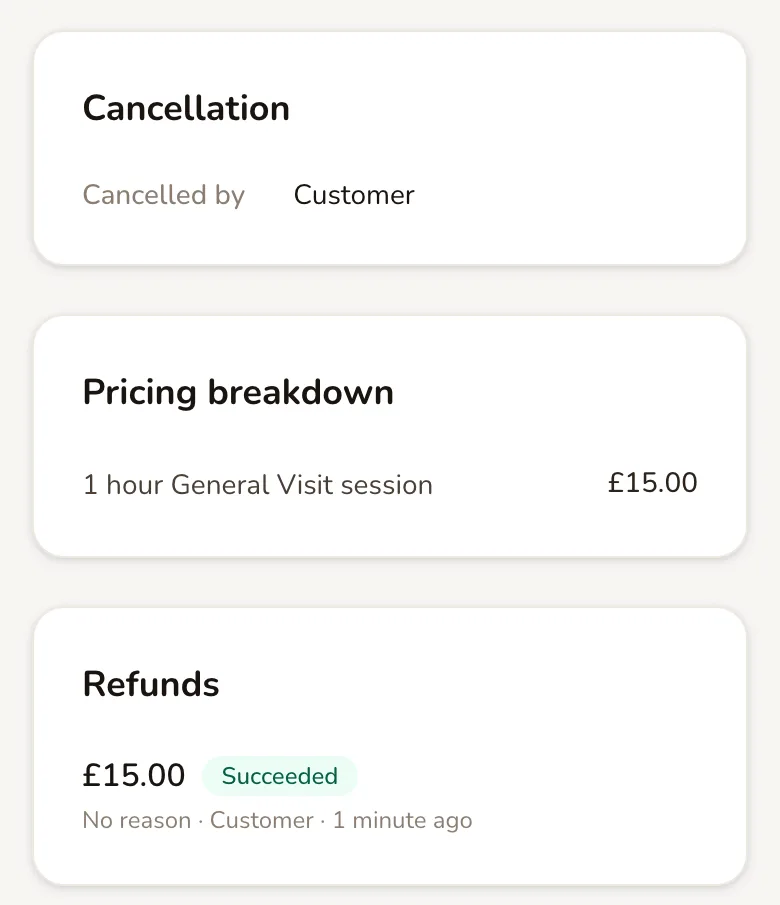
Cancelled by says Customer, Host, or System when Paddli cancelled it for you, for example when a customer did not send a required document in time.
Each refund shows its amount, status and who started it. Succeeded means Stripe has sent the money back. Pending means Stripe is still working on it, and Failed means it did not go through. If a refund fails, ask Jamie or Helen to look into it.
Give a refund without cancelling
Section titled “Give a refund without cancelling”Sometimes the session goes ahead but you want to give something back, for example when the gate was stuck and a customer lost part of their time. Open the booking, tap View order, then tap Issue refund.
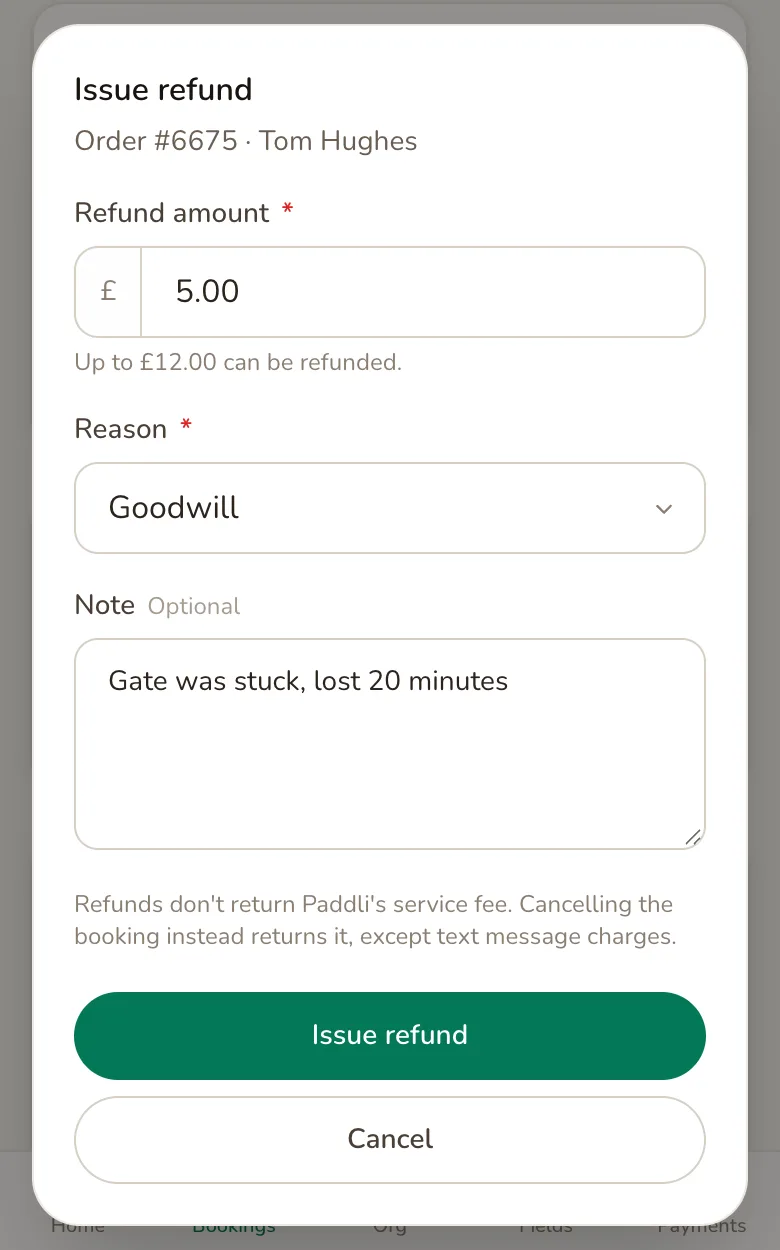
Refund amount starts at the full amount that is left to refund. Change it for a part refund. You cannot refund more than the amount shown under the box.
Reason is one of Customer request, Service issue, Goodwill or Other.
Note is optional and only you see it.
Tap Issue refund and you will see a message such as Refund of £5.00 issued. The booking stays as it is.
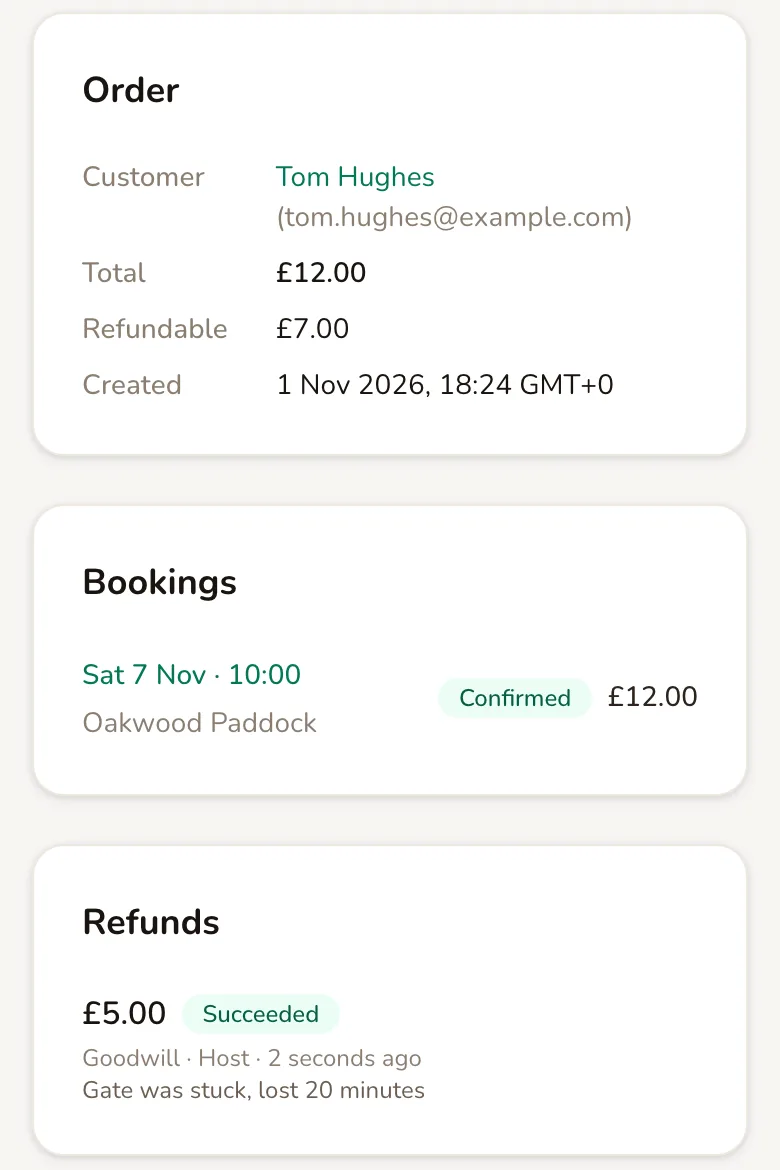
Refundable shows what is left, and you can issue more refunds until it reaches zero. Once Stripe confirms the refund, the order is marked Partially Refunded or Refunded. If you cancel the booking later, the customer gets back whatever is still refundable.
Issue refund does not email the customer, so let them know yourself.
Issue refund only returns card payments. The part of an order paid with a gift voucher cannot be refunded this way: it goes back onto the voucher only when the booking is cancelled. Refunds for weekly subscription payments: Not yet. Cancel that week’s session from its booking page instead, which refunds it if the customer has already paid for it.
Who pays the fees
Section titled “Who pays the fees”When a booking is cancelled, by you or by the customer:
- the customer gets that session back in full;
- Paddli returns its 5% fee for that session to you, apart from any text message charges.
When you use Issue refund:
- the customer gets back the amount you choose;
- Paddli keeps its fee.
Stripe keeps its card processing fee either way.
So when a session will not go ahead, cancel the booking rather than using Issue refund for the full amount.
Related
Section titled “Related”- Cancelling a booking yourself. Tap Cancel booking on any booking page. It always refunds that session in full, whatever your notice period.
- Weekly subscriptions. Subscribers can skip a session if Subscribers can skip a session online is on, within your notice period. A week they have already paid for is refunded. They can cancel the whole subscription at any time, and it ends after the period they have paid for.
- Required documents and dog details. If a customer does not send them in time, Paddli cancels the booking. Whether it is refunded depends on Refund auto-cancelled bookings on the field’s Booking setup page, which is on unless you turn it off.
- Group sessions and events. Each customer’s place works like a normal booking and can be cancelled online. If you cancel a whole group session or event, everyone booked on it is refunded.
- Manual bookings. They are paid outside Paddli, so cancelling one refunds nothing.
- Opening hours. Changing your opening hours does not cancel bookings already made.
Frequently asked questions
Can I keep part of the payment when a customer cancels late?
Not as a policy. When a customer cancels online, they are always refunded in full for that session. To protect late slots, set a Notice period on the field's Details page, for example 1 day. After that point customers cannot cancel online and are asked to contact you, and you decide what to do, such as giving a part refund with Issue refund on the order page.
If a customer cancels, do I get Paddli's fee back?
Yes. When a booking is cancelled, by you or by the customer, Paddli returns its fee for that session, apart from any text message charges, because those messages have already been sent. Stripe keeps its own card processing fee. If you use Issue refund instead of cancelling, Paddli's fee is not returned.
How long does a refund take to reach the customer?
Paddli sends the refund to Stripe straight away. The Booking Cancelled email tells the customer their refund should arrive within 7 days, back on the card they paid with. Any part they paid with a gift voucher goes back onto the voucher instead.
Can customers move their booking to a different time themselves?
Yes, if Customers can change online is switched on for the field, which it is unless you turn it off. From Manage Booking, they pick a new date and one of the available times. They can only move to a time at the same price, and only before your notice period starts. Weekly subscription sessions and event bookings cannot be moved online.
Does the customer get an email when I use Issue refund?
No. Issue refund sends the money back but does not email the customer, and it does not cancel the booking. Let them know yourself, and tell them refunds can take a few days to show on their card.
If I change my notice period, does it apply to bookings already made?
Yes. Paddli checks the field's settings at the moment a customer tries to cancel or change, so a new notice period, or switching cancelling off, applies to every upcoming booking straight away, including ones made before the change.
Do customers see my notice period before they book?
Not yet. Customers see it on the Manage Booking page once they have booked, as the last date and time they can make changes. To tell them before they pay, write your cancellation rules in the Policy box on the field's Details page, which customers see on the booking form.
Can I turn off online cancellation but still let customers move their booking?
Yes. The two switches work separately. With Customers can cancel online off and Customers can change online on, customers can move their booking to another time at the same price, and are asked to contact you if they want to cancel.