Your booking page and booking link
Your booking link takes customers to a page where they pick a time, pay and get a confirmation, with no account needed. Here is where to find your links and what happens when someone books.
Your booking page is where customers book your field: they choose a day and a time, pay, and get a confirmation straight away. Your booking link is the web address that takes them there, ready to post on social media, put in your bio or send in a message.
There are two kinds of link:
- Your booking site shows all your fields, for example
app.paddli.com/book/your-organisation. - A direct link opens one field’s booking page, for example
app.paddli.com/book/your-organisation/sunny-meadow.
Customers do not need an account or a password to book.
Find and copy your links
Section titled “Find and copy your links”Go to Org in the bar at the bottom of the screen, then Sharing. On a computer, Organisation is in the top bar and Sharing is in the side menu.
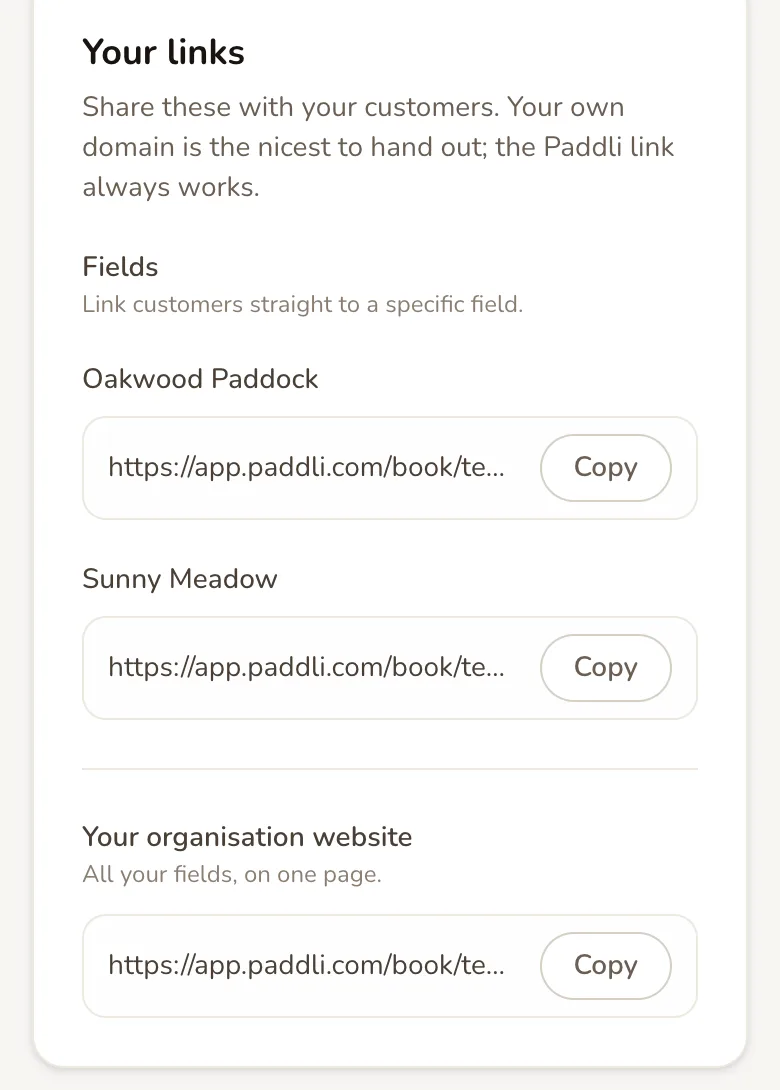
Your links lists a direct link for each field whose status is Active, and your booking site link under Your organisation website. Tap Copy next to a link and it shows Copied!, ready to paste wherever you need it.
You can also copy a field’s link from the field itself. Go to Fields and tap Direct link on the field’s card, or open the field and use the Direct link to this field card on its Overview page. The card says meadow, paddock or whatever type your field is.
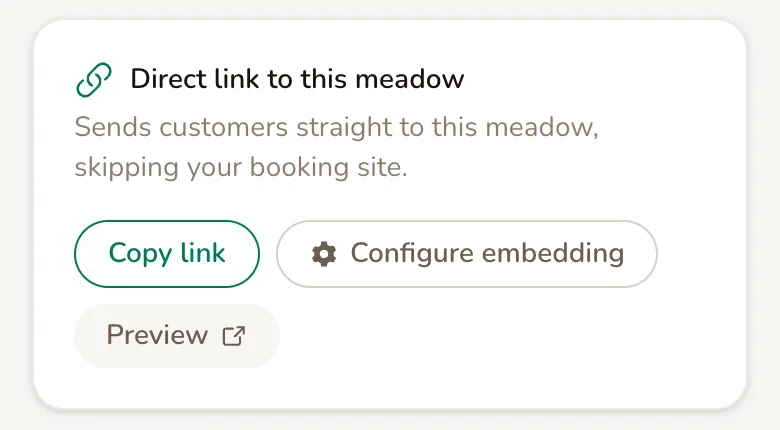
Preview opens the booking page in a new tab, so you can see it as a customer does. The Direct link buttons on the Fields list and the Overview page only appear once the field is Active and has something customers can book.
While you are getting started, your Dashboard also has a Your booking site card with Get your links and Preview. It goes away once you have had 20 bookings.
Which link to share
Section titled “Which link to share”Share your booking site link if you have more than one field, or want one link that never needs changing. Share a direct link when you want people to land on one field’s calendar with no extra tap, for example in a post about that field.
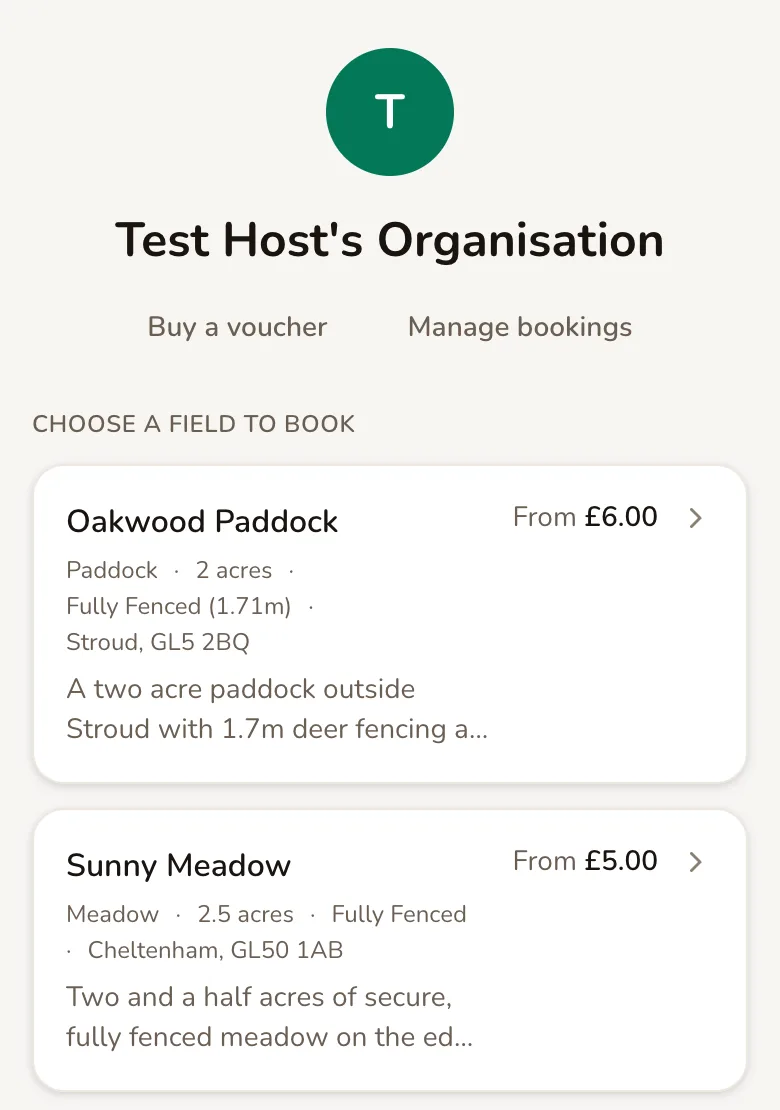
With one field, your booking site link goes straight to that field’s booking page. With several, it shows a list headed Choose a field to book, with each field’s size, fencing, town and From price. A field that has nothing to book yet shows Not available for booking yet instead of a price.
If you have switched on a website for your business under Org, then Website, your booking site link shows that website instead, with a Book now button.
Your links do not change
Section titled “Your links do not change”Your links are made from your organisation’s name and each field’s name when you create them. They stay the same after that, even if you rename the field or your organisation, so posters and old posts keep working. There is no setting to change a link. If you need a different one, ask Jamie or Helen.
What customers see first
Section titled “What customers see first”The top of a field’s booking page shows your photos, the field’s name, its type, size, fencing and maximum dogs, the town and postcode, your what3words address and the facilities you have ticked. Your description follows, shortened to two lines with Read more.
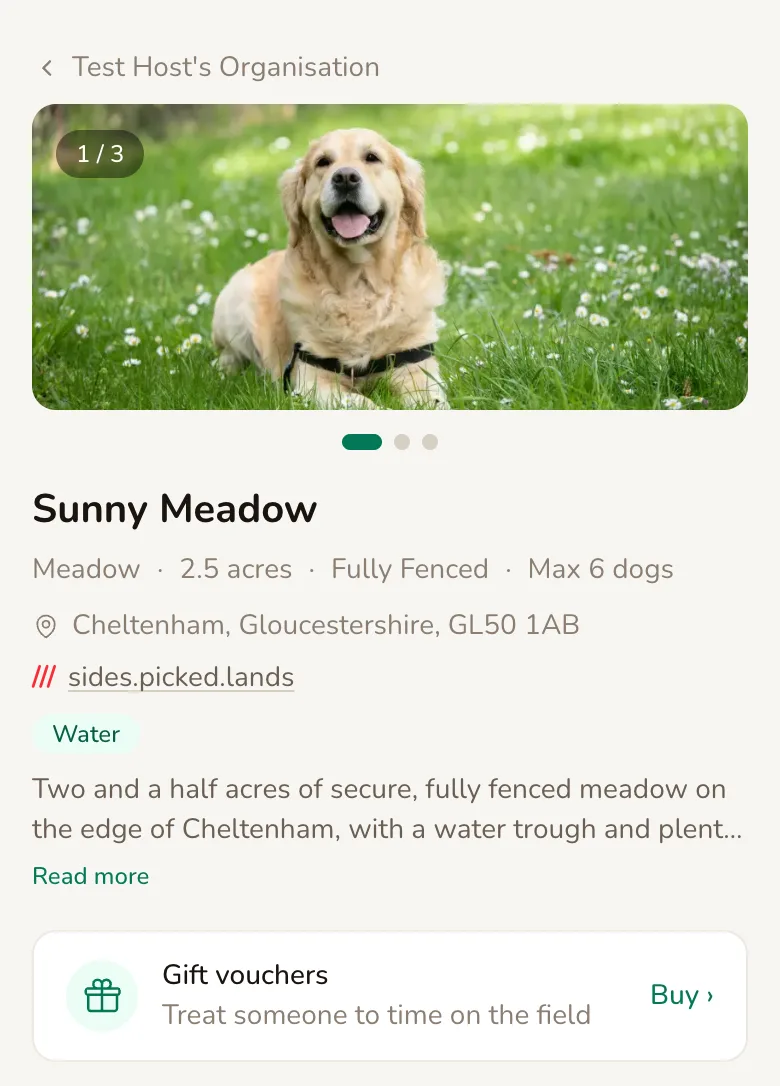
You change all of this on the field’s Details page: name, description, photos, size, maximum dogs, fencing, facilities and location. If you tick Only show the exact location after booking, the page shows only the town and county, and customers get the full address and directions once they have booked.
There is no map, opening hours table or reviews section on the booking page. The map and Get directions appear on the confirmation page after booking.
How customers book
Section titled “How customers book”Pick a time
Section titled “Pick a time”Customers pick what to book under What would you like to book? and how long under How long?. These only show when you offer more than one session type or booking length.
The calendar opens on the first day with free times. Days with a dot under them can be booked; other days are greyed out. Tapping a day lists its free start times under Morning, Afternoon and Evening, each with its price.
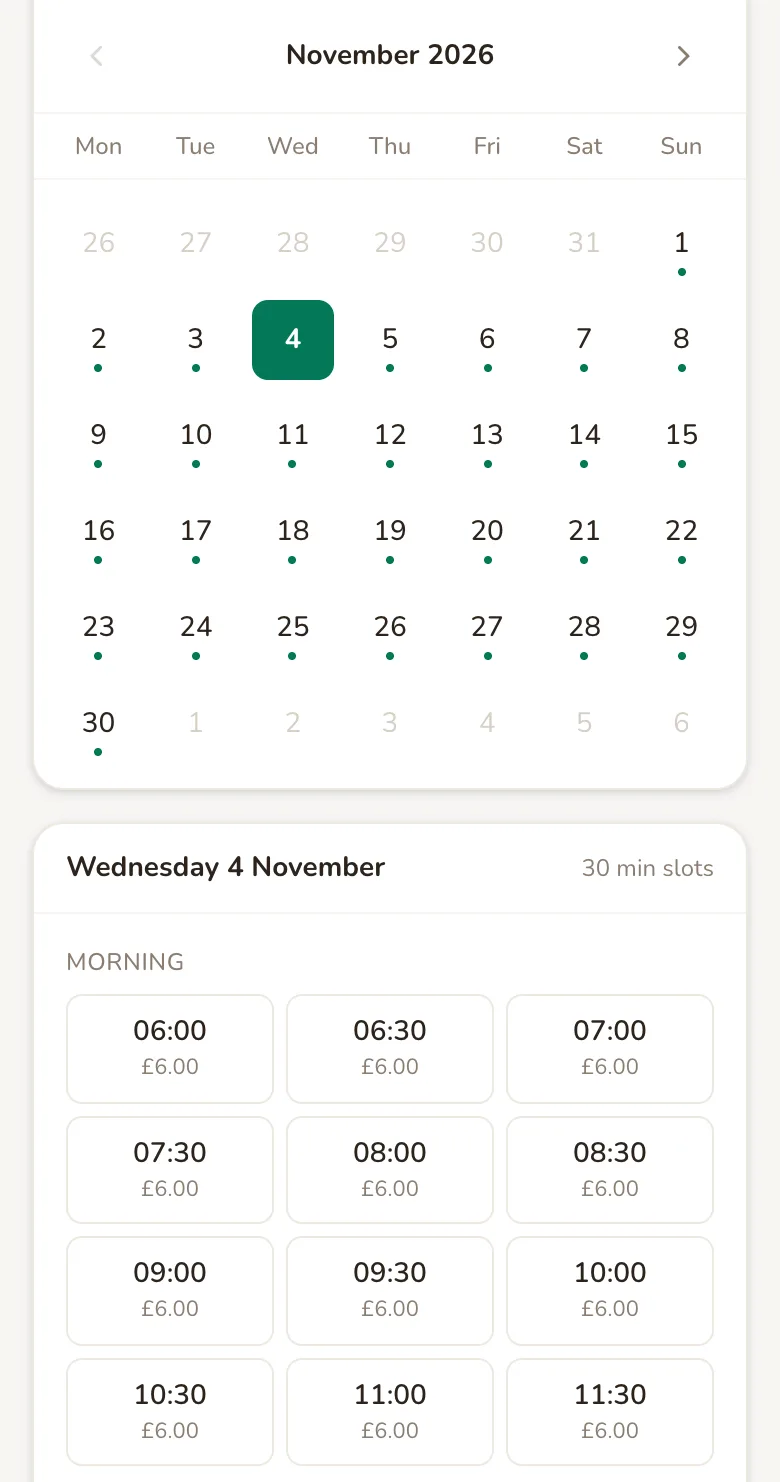
Times that are already booked are not shown at all, so customers only see what they can have. If a day has nothing free, it says No slots available on this date. Try a different date. Your session types, lengths and prices come from the field’s Booking setup page, and the times come from your opening hours.
Check the details
Section titled “Check the details”Tapping a time opens a summary of the session. Your session shows the day and time, with Change to pick again. If your changeover is inside the booking, it also tells them when to start leaving.
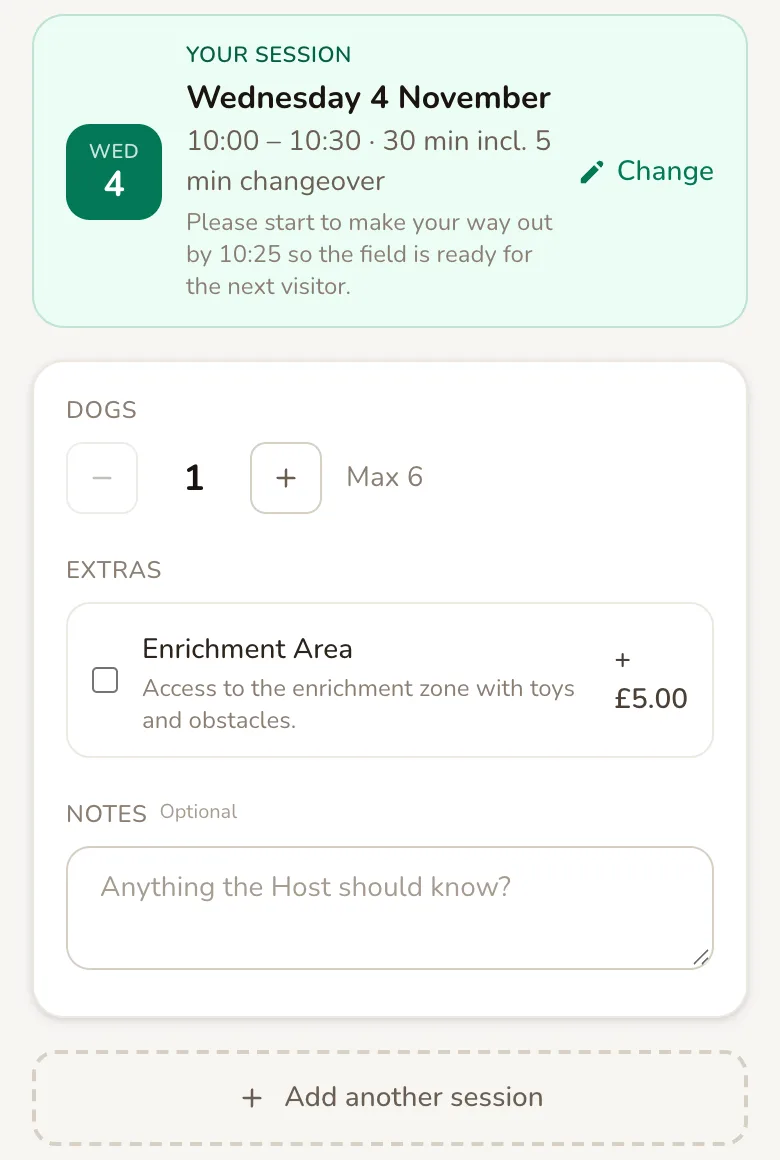
Below that, customers choose how many Dogs they are bringing, up to your maximum, and can leave Notes for you. Extras you sell, Subscribe to this slot for weekly bookings, and Add another session also appear here if you have them switched on.
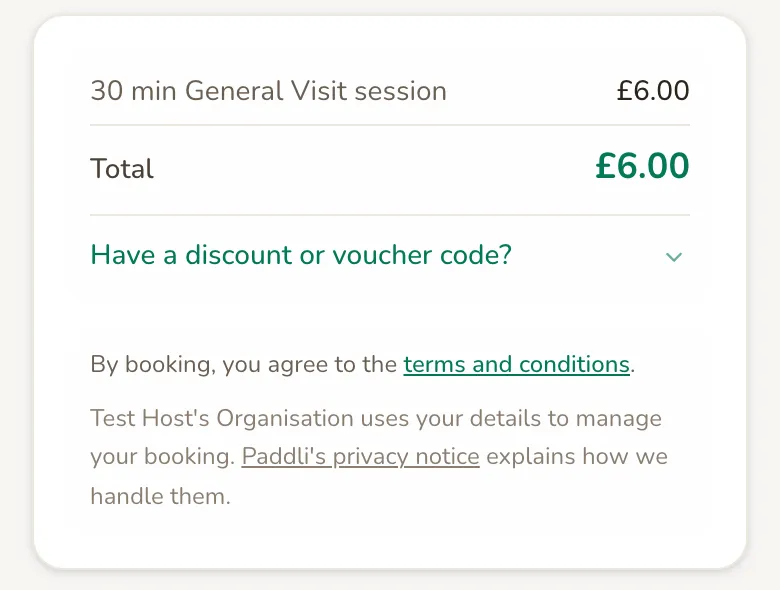
The summary then shows each line, the Total, and a box for a discount or voucher code if you use discount codes or sell vouchers. Under it, customers agree to your policy and the terms, either by ticking a box or by booking, depending on how your field is set up.
At the top are one-tap buttons for the wallets the customer’s phone or browser supports, such as Apple Pay or Google Pay. Otherwise, under or pay by card, they fill in Your details and their card.
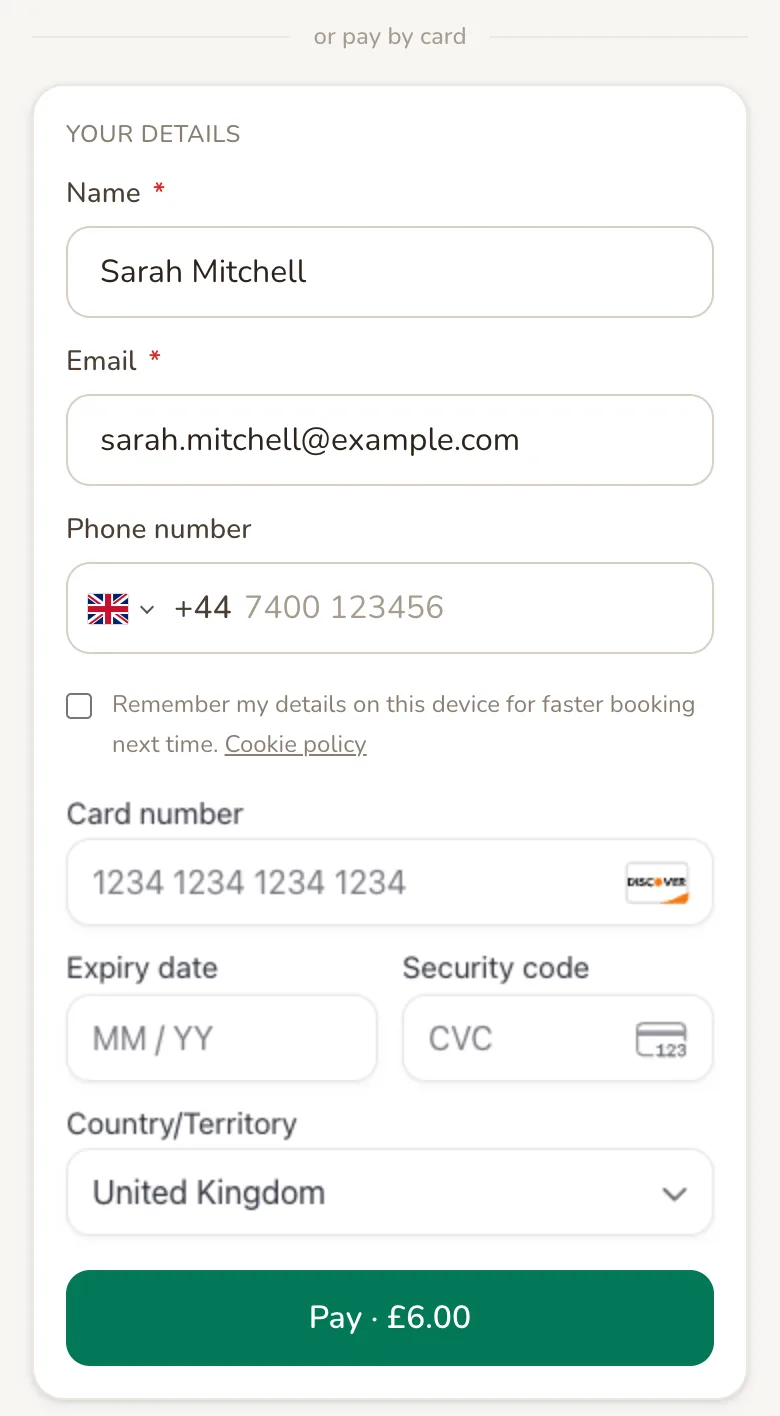
Name and Email must be filled in. Remember my details on this device saves their name, email and phone on that phone or computer for next time. The button shows the amount, for example Pay · £6.00, and the slot is theirs the moment they press it.
If another customer pressed Pay on the same slot first, the second customer is told the session was just taken and asked to pick another time. A payment that is never finished releases the slot again within about 10 minutes.
Confirmation
Section titled “Confirmation”Once the payment goes through, customers see Booking Confirmed with the session, date, time and price, and Total paid. If you use gate codes, it tells them when their code will arrive. Further down are a map with Get directions, Book Another Session, and a box to email themselves a receipt.
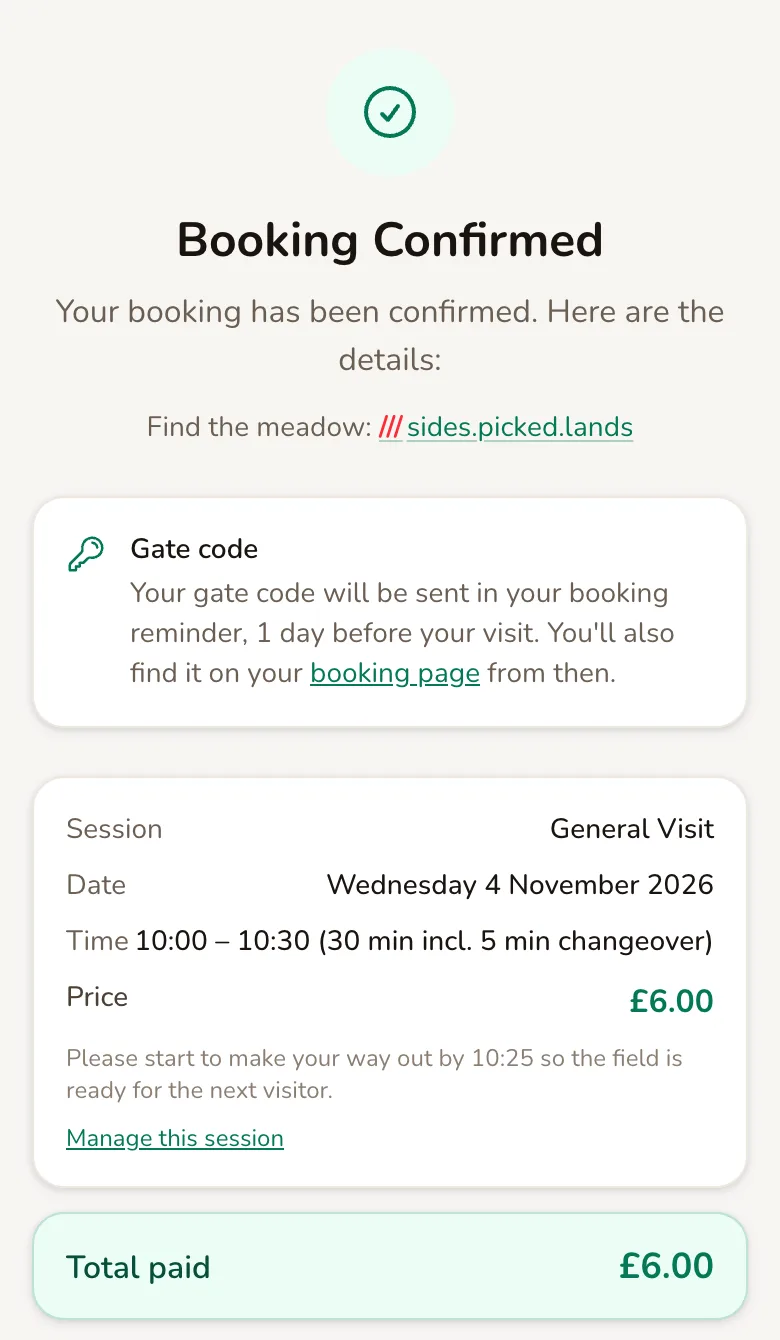
Paddli emails them a confirmation too, and sends a text or WhatsApp message if you have switched those on under the field’s Customer messages page. You get a New Order Received email. You can choose who gets it, and add texts or WhatsApp messages, under Org, then Notifications. The booking appears in Bookings straight away.
Set how far ahead customers can book
Section titled “Set how far ahead customers can book”Go to Fields, choose a field, tap Booking setup, and tap Edit on Timing & Changeover.
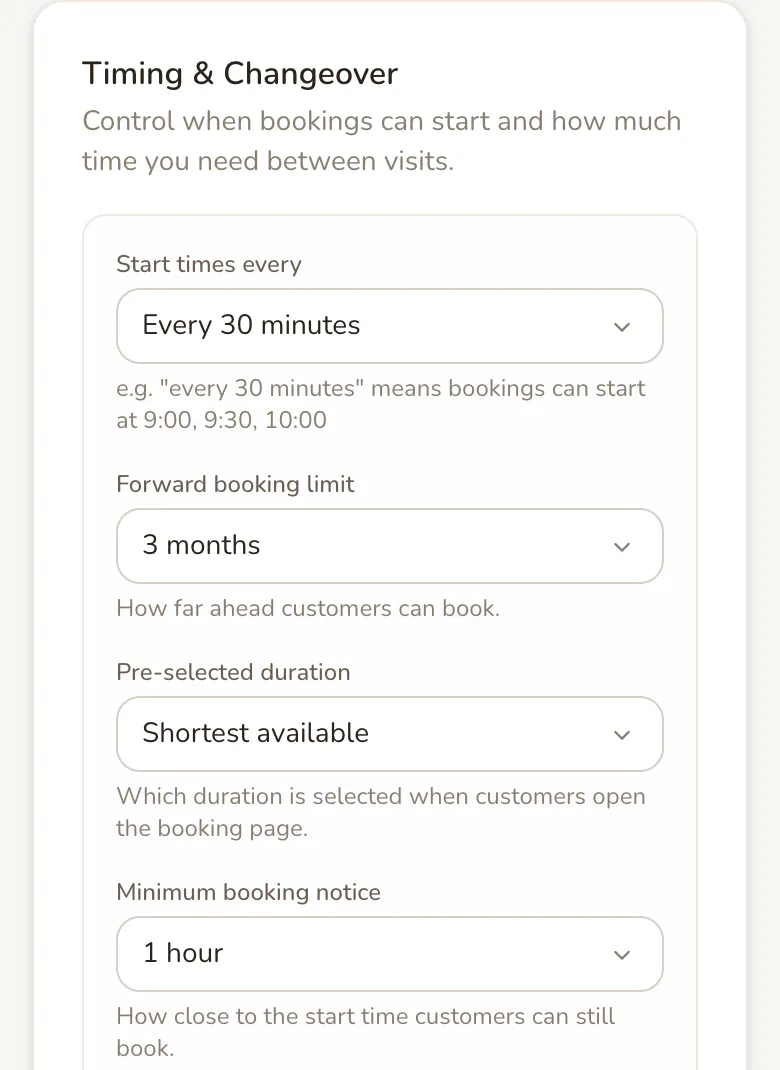
Forward booking limit is how far ahead customers can book: 1 month, 6 weeks, 2 months, 3 months, 6 months or 12 months. New fields start at 3 months. Days beyond the limit are greyed out on the calendar.
Minimum booking notice is how close to the start time customers can still book, from No notice needed to 2 days. New fields start at 1 hour, so at 09:10 the first time a customer can book is 10:30 with 30 minute start times.
Start times every and the changeover choices on the same form are explained in opening hours and on the form itself. Tap Save and new bookings follow the new settings straight away. Bookings already made are not changed.
When customers cannot book
Section titled “When customers cannot book”- The field is not Active. A field set to Draft or Paused under Details has no booking page: its direct link shows a page not found message and it drops off your booking site. Bookings already made stay booked.
- Nothing is on the schedule. If a field has no session types in its opening hours, its page says it isn’t available for booking yet and asks customers to check back soon.
- Stripe is not connected. Until you connect Stripe, your page tells customers they will not be charged, and your first 10 bookings across all your fields go through for free. After that, booking is paused until you finish setting up payments.
Customers who come back
Section titled “Customers who come back”Your booking page has Manage my booking at the bottom, and your booking site has Manage bookings at the top. Both open a page where customers enter their email and tap Email me a secure link.
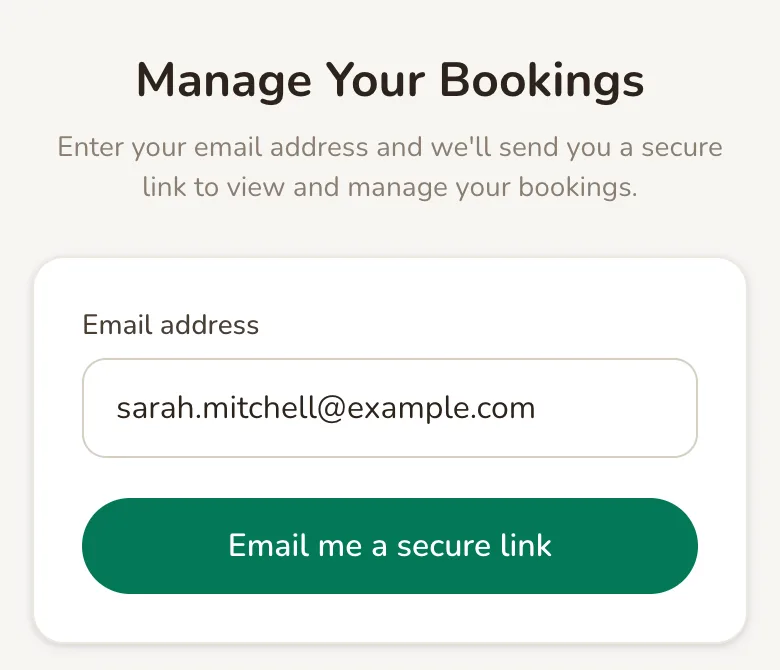
The link in that email lasts 60 minutes and opens a list of their bookings with you, where they can tap Change booking or Cancel booking, within the cancellation rules on your field’s Details page. After that, the same browser stays signed in for a year, so they can go straight back to their bookings.
There is no “book again” button on the booking page yet. Customers who ticked Remember my details on this device have their name, email and phone filled in for them. The confirmation page has Book Another Session, and the thank-you email Paddli can send after a visit has a Book another visit button.
When your link is shared
Section titled “When your link is shared”When you paste your link into WhatsApp, Facebook or a text, it shows a preview card. A direct link uses the field’s first photo and description. Your booking site link uses the image and description you set under Org, then Sharing, in the Social share image and Description cards, or a field photo if you have not set one.
Related
Section titled “Related”- Session types and pricing are set on each field’s Booking setup page, and decide what customers can choose and what it costs.
- Opening hours decide which days have a dot and which times are listed.
- Discount codes go in the code box in the summary, before the customer pays.
- Payments go to your Stripe account, and Paddli takes 5% of each booking.
- Add another session, under Checkout Modes & Promotions on the Booking setup page, lets customers book several sessions at one field and pay once.
- Your own website and embedding turn your booking site into a themed website, or put the booking form on a website you already have. The website is under Org, then Website, and embedding is on each field’s Overview page.
Frequently asked questions
Do my customers need an account to book?
No. Customers book as guests with their name and email, and pay on the same page. To see or change their bookings later, they tap Manage my booking at the bottom of your booking page, enter their email, and Paddli emails them a secure link.
Can two customers book the same slot?
No. A slot is held for a customer the moment they press Pay. If someone else pressed Pay first, the second customer is told the session was just taken and asked to pick another time, and they are not charged. If a payment is never finished, the slot is released again within about 10 minutes.
Can I change my booking link?
Not yet. Your links are made from your organisation's name and your field's name when you create them, and they stay the same so links you have already shared and printed keep working. Renaming a field does not change its link. If you need a different link, ask Jamie or Helen.
How far ahead can customers book?
Three months ahead, unless you change it. Go to Fields, choose a field, tap Booking setup and edit Timing & Changeover. Forward booking limit can be anything from 1 month to 12 months, and it is set for each field.
Can customers book at the last minute?
Yes, up to the notice you set. Minimum booking notice, under Timing & Changeover on a field's Booking setup page, sets how close to the start time customers can still book, from No notice needed up to 2 days. A new field starts at 1 hour.
What do customers see if I pause my field?
A field that is Paused or Draft has no booking page, so its direct link shows a page not found message and the field drops off your booking site. Bookings already made are not cancelled. Set the field back to Active under Details and the same link works again.
Is there a QR code for my booking link?
Not yet. Copy your link from Organisation, then Sharing, and paste it into any free QR code maker to put it on a gate sign or poster.
Do customers get a confirmation?
Yes. After paying they see a Booking Confirmed page with the date, time, price and directions, and Paddli emails them a confirmation. They also get a text or WhatsApp message if you have switched those on under the field's Customer messages page.