Opening hours
Choose when your field can be booked. Keep the same weekly hours all year, give each part of the year its own hours, or let your hours follow sunrise and sunset.
Your opening hours decide which times customers can book on your booking page. You can set them three ways:
- Same all year: one set of weekly hours that never changes.
- Seasonal: split the year into periods, such as summer and winter, each with its own weekly hours.
- Daylight: open and close with the sun, so your hours move a little every day without you touching them.
Each field has its own hours. Within any of them, a day can have more than one time window, so you can charge a peak price in the morning and a standard price in the afternoon.
Where to find them
Section titled “Where to find them”Go to Fields, choose a field, then tap Booking setup. On a phone, Fields is in the bar at the bottom of the screen and Booking setup is in the row of buttons under the field’s name. Your hours are in the Weekly Schedule section, near the bottom of the page.
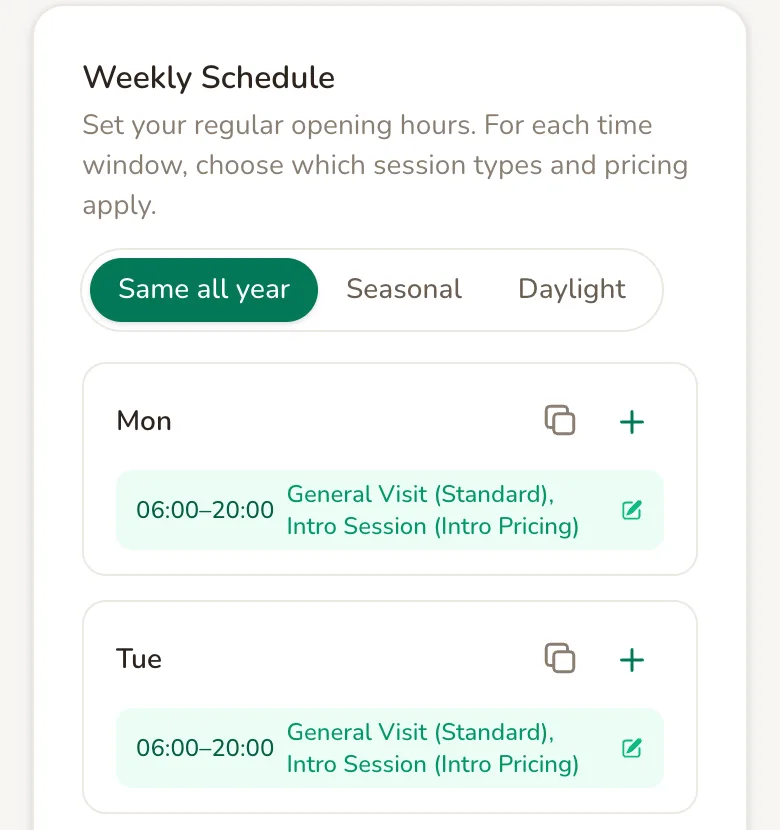
The switch at the top chooses how your hours work. Tapping Seasonal or Daylight opens a panel that explains what will happen. Nothing changes until you press the button in that panel, so you can look before you decide.
Set your weekly hours
Section titled “Set your weekly hours”Each day is a card with one or more time windows. A window is a stretch of time plus what can be booked in it: which session types, and which pricing applies. A day with no windows shows Closed.
Tap a window to change it, or tap the plus button on a day to add one. On a phone the day’s buttons are icons: the two squares copy the day, and the plus adds a window.
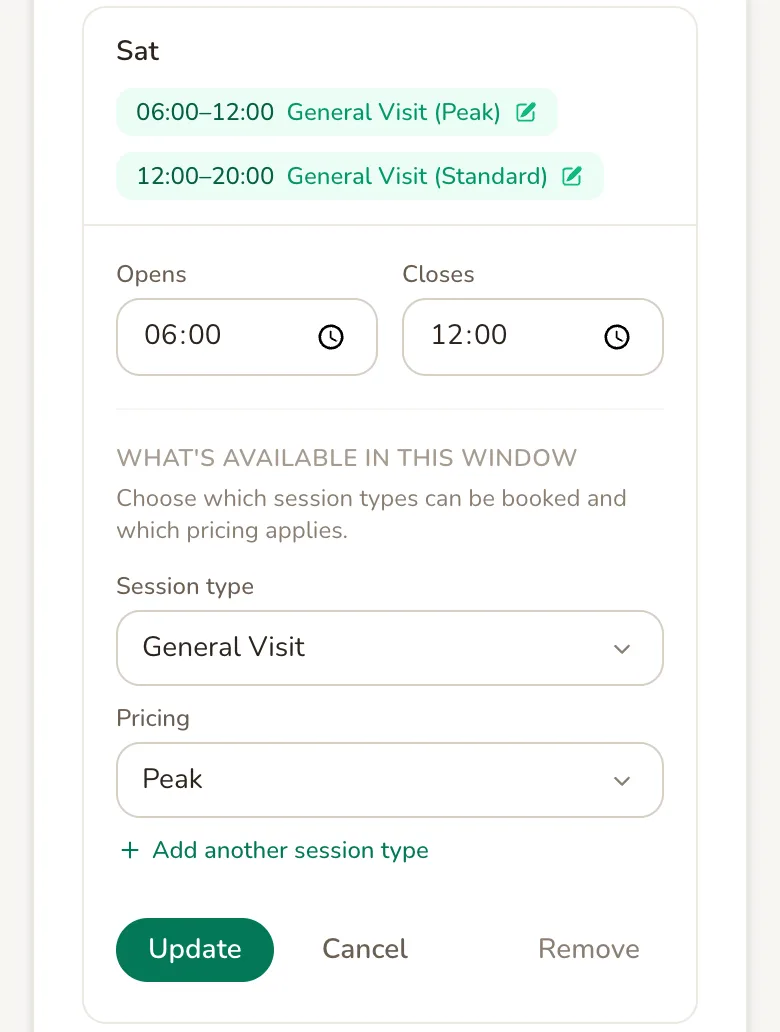
Opens and Closes are the start and end of the window. Customers can start a booking at the opening time and then at every step of your Start times every setting, under Timing & Changeover on the same page. A session has to finish by the closing time, but changeover time can run past it.
What’s available in this window sets what can be booked in it. Pick a Session type and the Pricing that applies, and tap Add another session type to offer more than one. Each session type can appear once per window.
Tap Add Window for a new window, or Update to save a change. New bookings follow your new hours straight away.
Windows on the same day cannot overlap. If they do, you will see “This window overlaps an existing time window on this day.” To charge differently by time of day, use two windows that meet, as in the example above: Saturday 06:00 to 12:00 at Peak pricing, then 12:00 to 20:00 at Standard pricing.
To close a day, tap each of its windows, tap Remove and confirm.
Copy a day to other days
Section titled “Copy a day to other days”Tap the copy button on a day to give its hours to other days in one go.
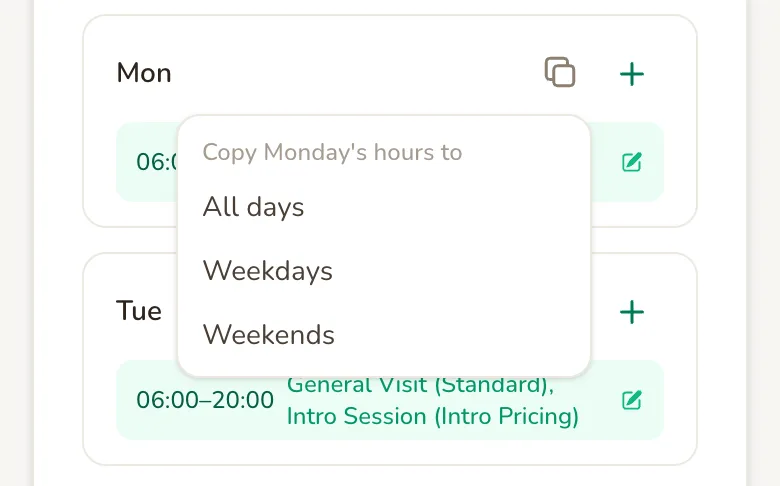
Choose All days, Weekdays or Weekends, then tap Copy hours to confirm. The other days get the same windows and what is bookable in them, replacing what they had. Copying a closed day closes the others too.
You cannot pick individual days yet. Copy to the nearest group, then change the odd day by hand.
Same all year
Section titled “Same all year”This is where every field starts: the weekly hours above, every week of the year. For bank holidays, maintenance or a week away, keep these hours and use Date Overrides for the dates that differ (see below).
Seasonal hours
Section titled “Seasonal hours”Use seasonal hours when your field keeps longer hours in summer than in winter, or opens differently in the school holidays.
Tap Seasonal and the Split your year into periods panel opens with four periods ready to go.
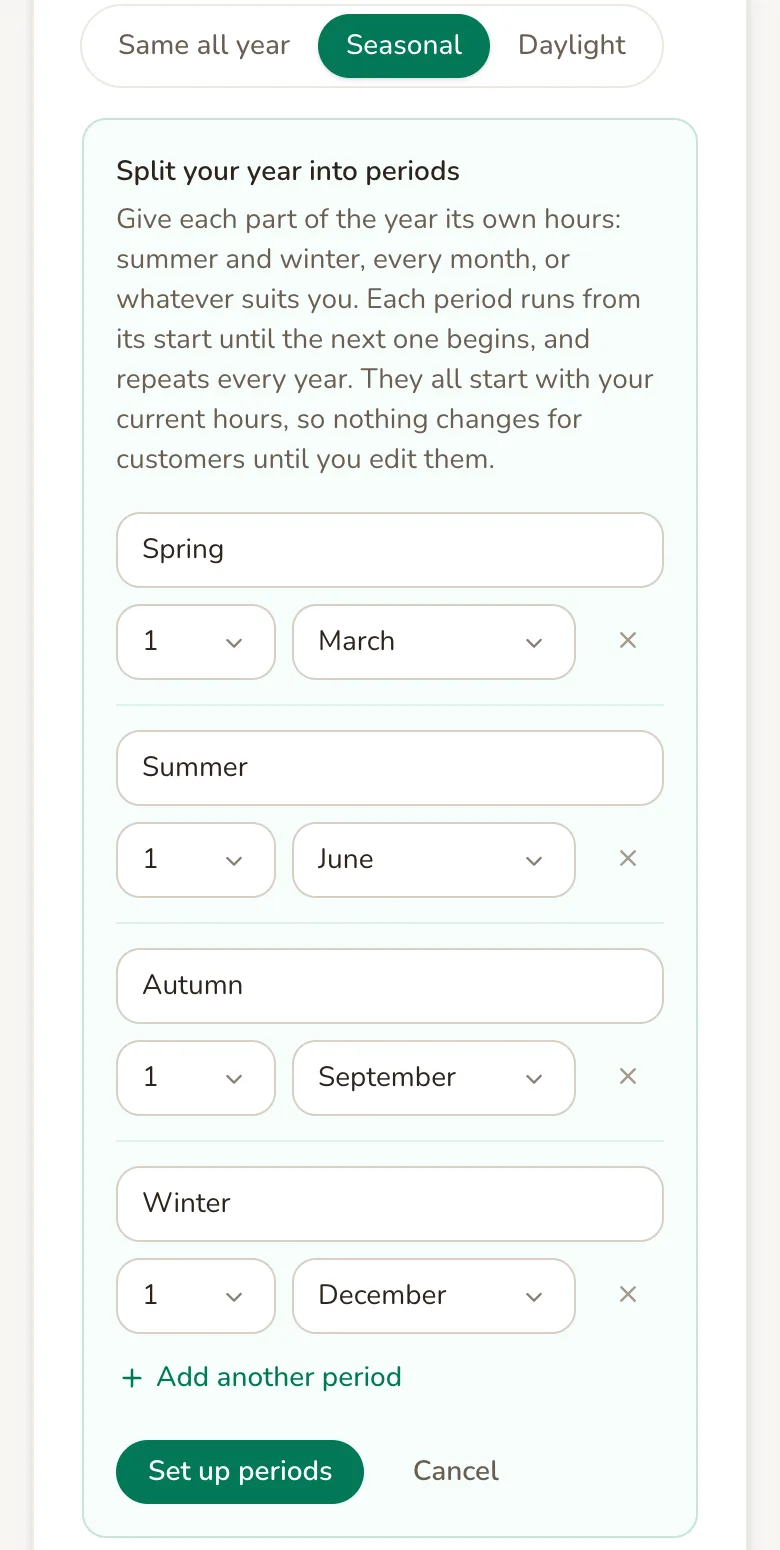
Rename any period, change the day and month it starts, remove one with the cross, or tap Add another period. You need at least two periods and can have up to 24, each with its own name. Each period runs from its start date until the next one begins, the last one runs on over New Year, and they repeat every year, so there are never gaps.
Tap Set up periods. Every period starts with your current hours, so nothing changes for customers until you edit one.
Choose a period from the Period list (on a bigger screen, tap it on the bar across the year), then set its days exactly as above. The period in force today is marked as now.
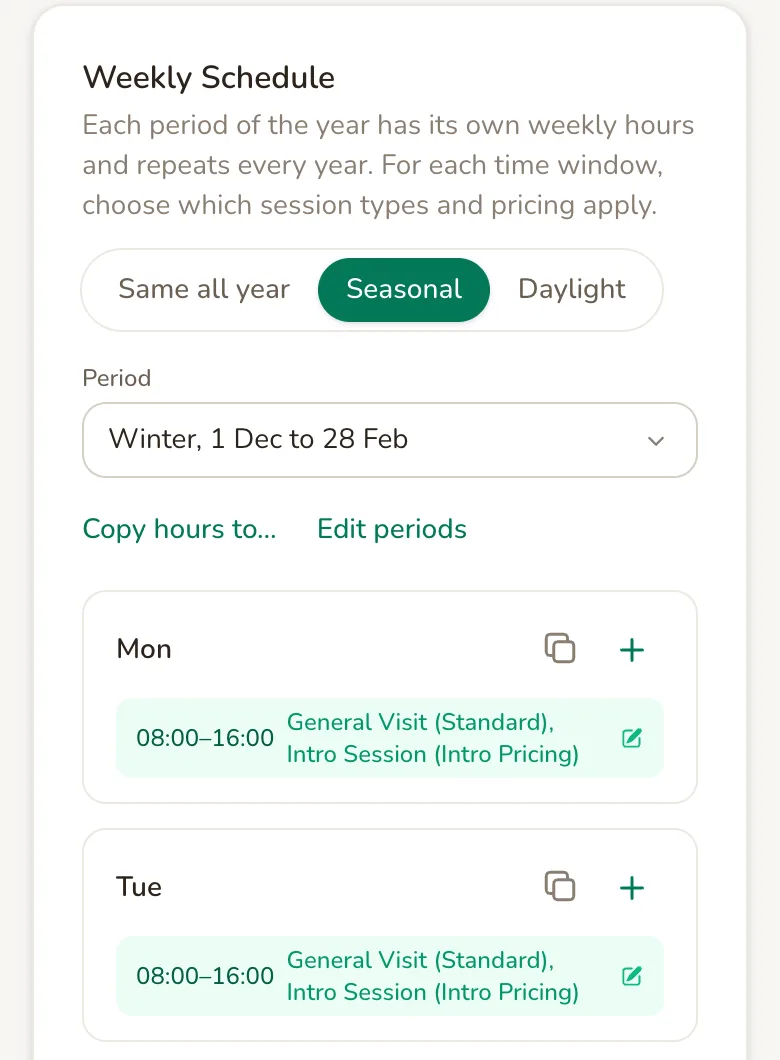
Copy hours to… gives this period’s whole week to other periods. Tick the ones you want and tap Copy hours.
Edit periods changes names and start dates later. A new period starts with the hours its first day has now, and removing a period hands its dates to the period before it.
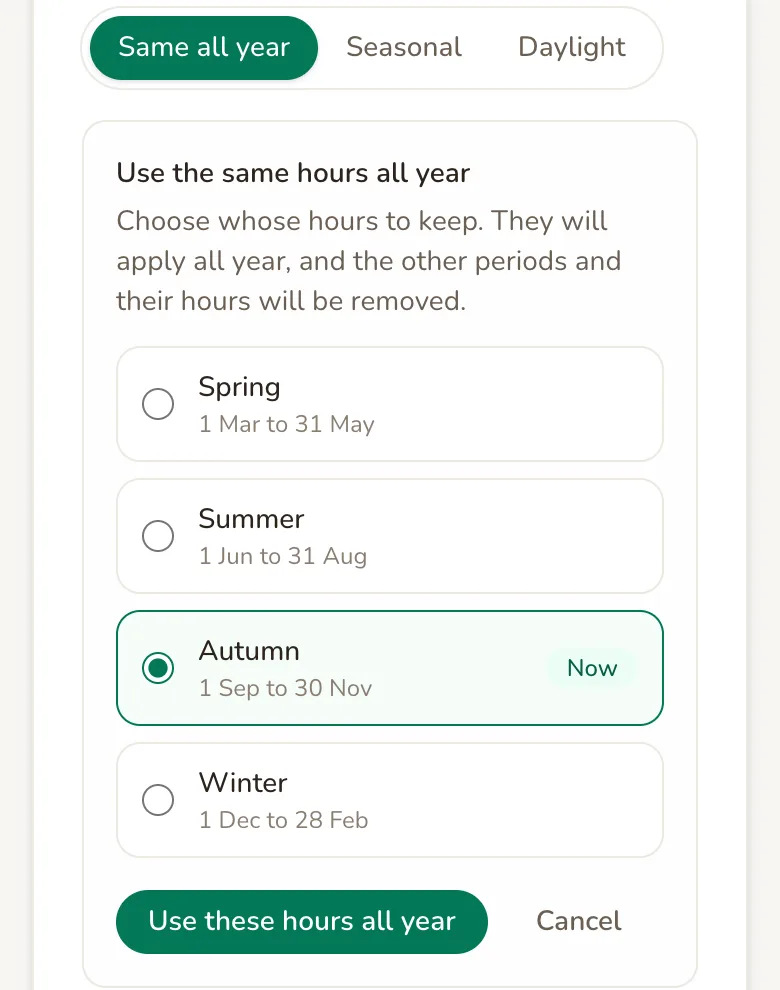
To go back to one set of hours, tap Same all year, choose whose hours to keep and tap Use these hours all year. The other periods and their hours are removed.
Daylight hours
Section titled “Daylight hours”Daylight hours suit a field without lights, or anywhere you want to make the most of light evenings without changing your hours every few weeks.
Add your field’s location first
Section titled “Add your field’s location first”Sunrise and sunset are worked out from your field’s exact position, not its address. Go to your field’s Details, find Latitude and Longitude under Location, enter them and tap Save Changes. You can copy them from a map app by dropping a pin on your field. If they are missing when you tap Daylight, Paddli asks you to add them first.
Switch it on
Section titled “Switch it on”Tap Daylight and the Follow sunrise and sunset panel opens.
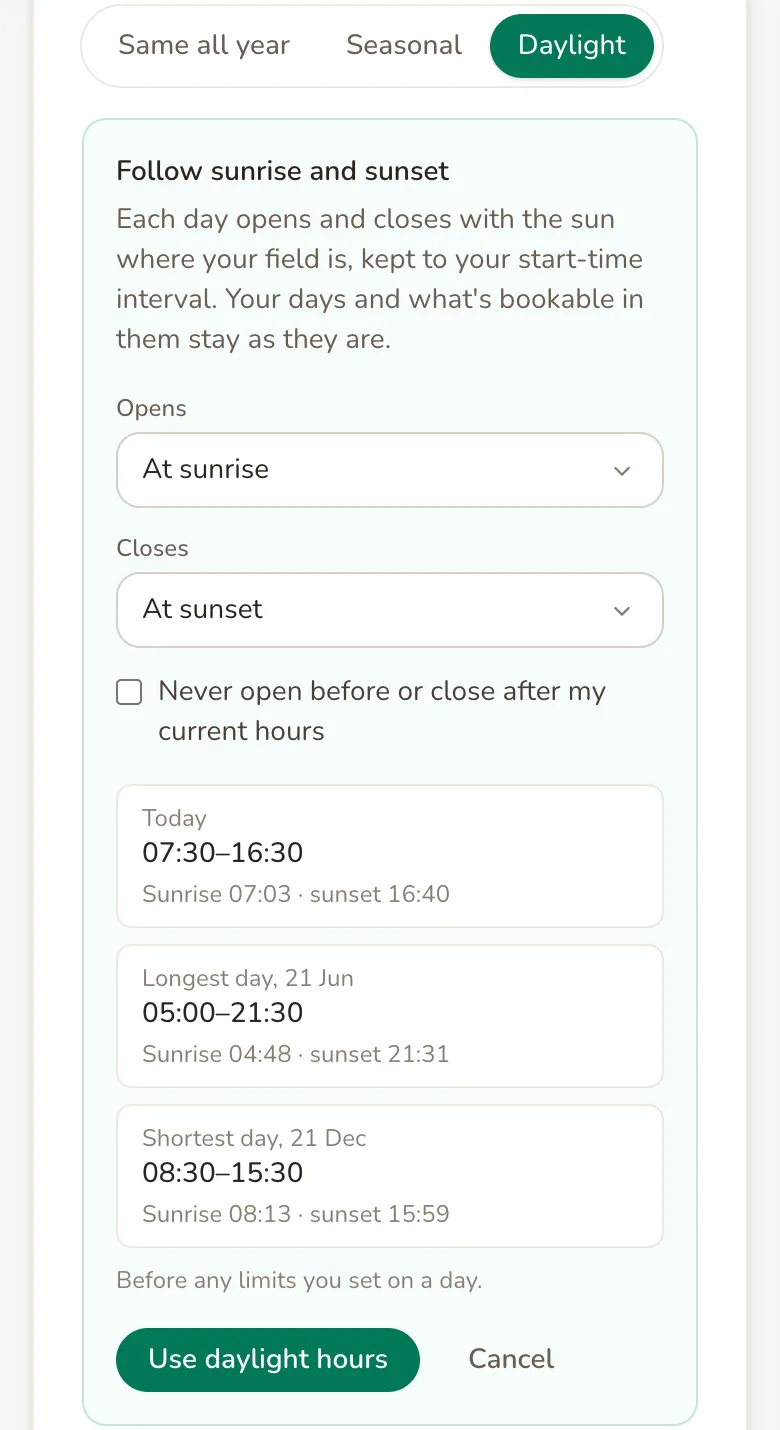
Opens can be anything from 2 hours before sunrise to 2 hours after it, in 15 minute steps. Closes works the same way around sunset. The cards below show what that gives you today and on the longest and shortest days.
Tick Never open before or close after my current hours to keep your current opening and closing times as outer limits. Leave it unticked to let the sun decide. Either way, each day keeps what is bookable in it, and a day split into two windows keeps its split.
Tap Use daylight hours.
Times are kept to your start times. Opening rounds later and closing rounds earlier, so your field is never open outside what you chose. With start times every 30 minutes, a 07:03 sunrise opens at 07:30 and a 16:40 sunset closes at 16:30.
Your Weekly Schedule then shows today’s sunrise, sunset and opening hours. Tap Change to move your opening or closing time.
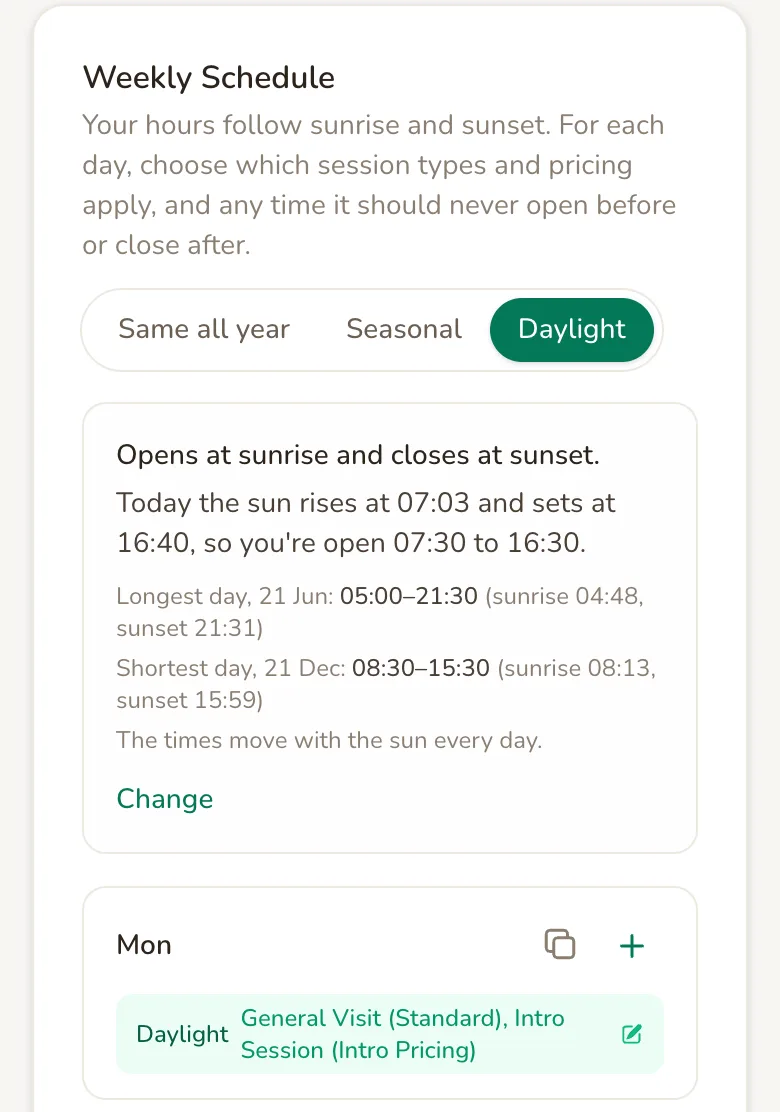
The clocks going forward or back need nothing from you: the times follow the sun on the clock.
Limits and pricing by time of day
Section titled “Limits and pricing by time of day”With daylight hours, the times in a window become limits. Never opens before and Never closes after keep a day inside times you choose, for example never before 08:00 at weekends. 00:00 and 23:59 mean sunrise to sunset with no limit.
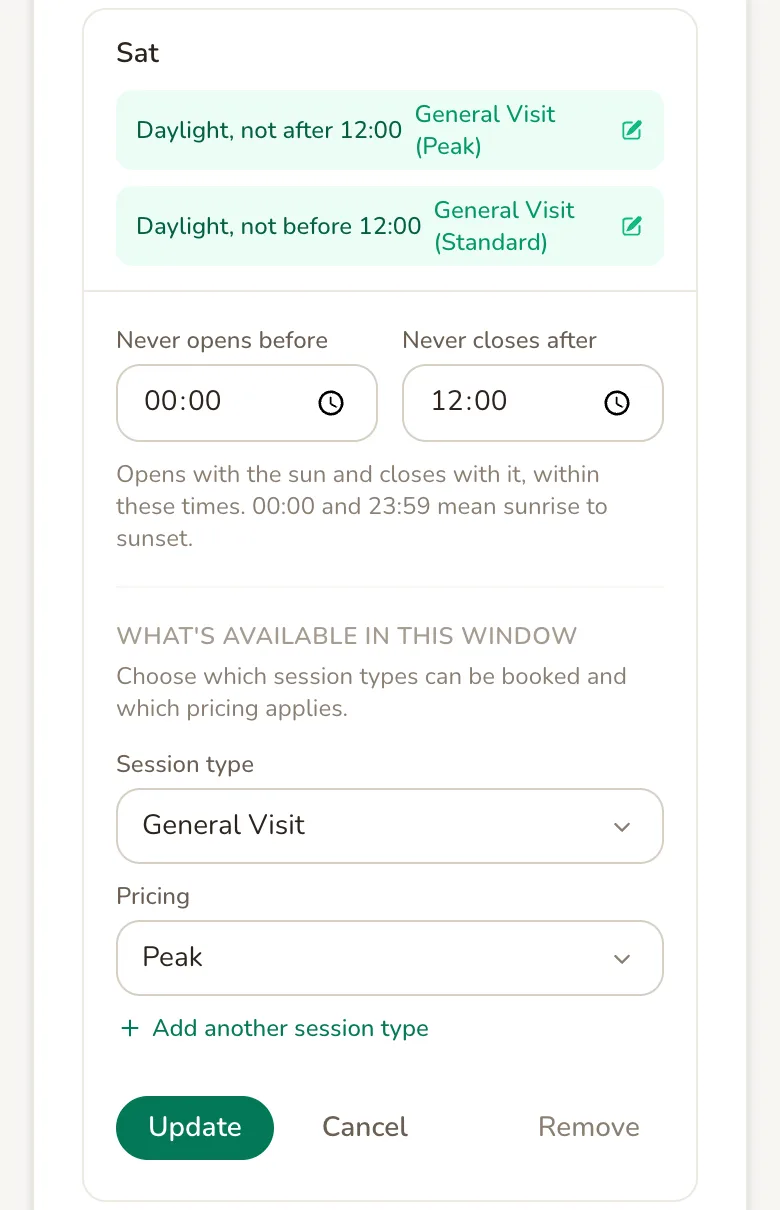
To charge differently by time of day, split the day into windows that meet. The example above is Peak pricing from sunrise until 12:00 and Standard pricing from 12:00 until sunset. If the sun leaves no time in a window on a given day, that window does not open that day.
While your hours follow the sun, you cannot remove your field’s latitude and longitude. Changing them, or changing Start times every, changes your hours too.
Switching between them
Section titled “Switching between them”Each switch has its own panel, and the button in it makes the change. There is no undo, so check what will happen first:
- Same all year to Seasonal. Nothing is lost. Every period starts with your current hours.
- Seasonal to Same all year. You choose one period’s hours to keep. The others are removed.
- Same all year to Daylight. Your windows become limits. Unticked, the sun sets the start and end of each day; ticked, your current times stay as limits.
- Seasonal to Daylight. Only the period in force today is kept. The other periods and their hours are removed.
- Daylight to Same all year. Each day gets the daylight hours it has today as fixed times, shown in the Use fixed hours panel. Your hours from before Daylight are not brought back.
- Daylight to Seasonal. Today’s daylight hours become fixed times first, then the year is split.
Seasonal and daylight hours cannot be combined yet.
What customers see
Section titled “What customers see”Customers see the start times they can book, worked out from your hours for that date. They never see sunrise, sunset or the names of your periods.
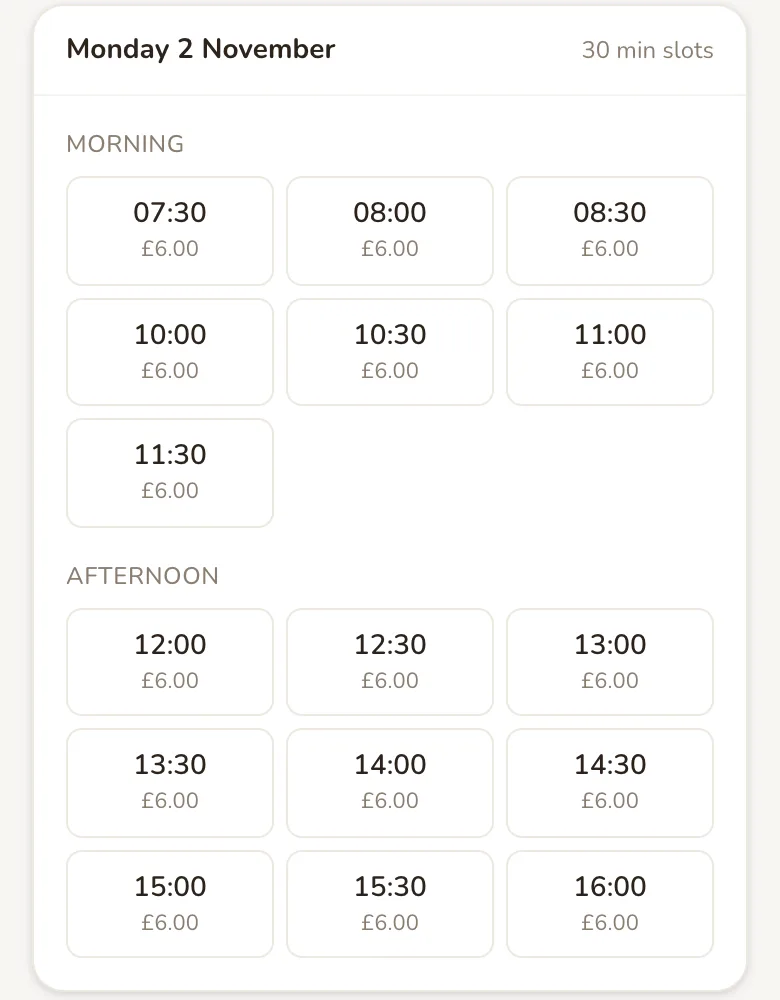
A day with no times left shows “No slots available on this date. Try a different date.”
If you have a Paddli website with its opening hours section switched on, it lists the opening and closing time for each day of the coming week, across all your fields. Date overrides are not shown there.
Weekly bookings and bookings already made
Section titled “Weekly bookings and bookings already made”One-off bookings already made are kept when you change your hours, even if they now fall outside them. Paddli does not warn you, so check your Bookings before cutting hours, and cancel any session that cannot go ahead from its booking page.
Weekly bookings are checked every time you save.
- If a change would take a subscriber’s time away straight away, Paddli stops it and says who: “This change would leave Sam Lee’s Wednesday 16:00 weekly booking outside your opening hours. Cancel the subscription first, or keep that time open.”
- If the change only affects them later, for example in a winter period with shorter hours, Paddli shows This will end a weekly booking, with each customer’s name and their last session. Tap Save and end it to go ahead, or Keep editing.
- Customers whose weekly booking ends are emailed straight away. They are charged up to their last session and nothing after it.
- When you copy hours, any day that would leave a subscriber outside your hours is left as it is, and Paddli tells you which day and why.
On daylight hours, changing your field’s latitude and longitude or your Start times every setting can also end a weekly booking that no longer fits. That happens without the check above, though the customer is still emailed.
Close or change a single date
Section titled “Close or change a single date”Date Overrides, just below Weekly Schedule, change one date or a range without touching your weekly hours. Close a day with Closed all day, set shorter hours, or block off part of a day for mowing or maintenance. Overrides work with every kind of hours.
A date override cannot make a day longer than your weekly hours or open a day that is normally closed. That is not possible yet.
Ideas for using your hours
Section titled “Ideas for using your hours”- Long summer evenings. Seasonal hours with Summer open 06:00 to 21:00 and Winter 08:00 to 16:00.
- No floodlights. Daylight hours closing 30 minutes before sunset, so the last customer leaves while it is still light.
- Quiet weekend mornings. Daylight hours with never opens before 08:00 on Saturday and Sunday.
- Busy mornings. A Peak window until 12:00 and a Standard window after it, on fixed or daylight hours.
- School holidays. A Seasonal period for the summer holidays with longer weekday hours.
Related
Section titled “Related”- Session types and pricing are set further up the Booking setup page. A session type only appears on your booking page once it is in at least one time window.
- Start times every, under Timing & Changeover, sets how often a booking can start and how daylight times are rounded.
- The setup assistant, bottom right of the Booking setup page, can add and change time windows (in any period, and as limits on daylight hours), copy a day to other days and add date overrides. It cannot switch between Same all year, Seasonal and Daylight, change your periods or change your daylight settings.
Frequently asked questions
Will changing my opening hours cancel bookings customers have already made?
No. One-off bookings that are already made stay booked, even if they now fall outside your new hours, and Paddli does not warn you about them. If a session cannot go ahead, cancel it from its booking page. New bookings follow your new hours straight away.
What happens to my weekly subscribers if I change my hours?
Paddli checks every weekly booking before it saves. If a change would take away a subscriber's time straight away, it stops you and names them. If the change only bites later in the year, it shows who it affects and when their last session will be, and you choose whether to go ahead. If you do, each customer is emailed, and they are charged only up to their last session.
Do my customers see sunrise and sunset times?
No. Customers only see the start times they can book. Sunrise, sunset and the names of your periods are never shown to them. If your Paddli website shows your opening hours, it lists the opening and closing time for each day of the coming week.
Can I use seasonal hours and daylight hours together?
Not yet. A field follows one of Same all year, Seasonal or Daylight. If you want daylight hours with extra rules for part of the year, use Daylight and set a never opens before or never closes after time on the days that need it.
Why does my field open at 07:30 when the sun rises at 07:03?
Daylight hours are kept to your start times, which you set under Start times every on the same page. With start times every 30 minutes, opening rounds later to 07:30 and closing rounds earlier, so your field is never open outside the times you chose.
How do I close my field for Christmas Day?
Use Date Overrides, below your Weekly Schedule on the Booking setup page. Add an override for that date and tick Closed all day. It works whichever kind of hours you use, and your weekly hours stay as they are.
Can I open later than usual on one date?
Not yet. A date override can close a day, shorten it or block off part of it, but it cannot make a day longer than your weekly hours or open a day that is normally closed. Ask Jamie or Helen if you need a one-off late opening.
Can I go back to my old hours after switching to Daylight?
Not automatically. When you switch from Daylight back to fixed hours, each day gets the daylight hours it has today as fixed times, and the hours you had before Daylight are not brought back. Note your hours down before switching so you can set them again.