Managing your bookings
Find any booking in the list or on the calendar, see who is coming and what they paid, and change, move or cancel a booking when plans change.
The Bookings page is where you see who is coming to your field and when. You can look at your bookings as a list or on a calendar, open any booking to see its details, and edit, reschedule or cancel it when a customer’s plans change.
Where to find it
Section titled “Where to find it”Go to Bookings in the top bar. On a phone, tap Bookings in the bar along the bottom of the screen.
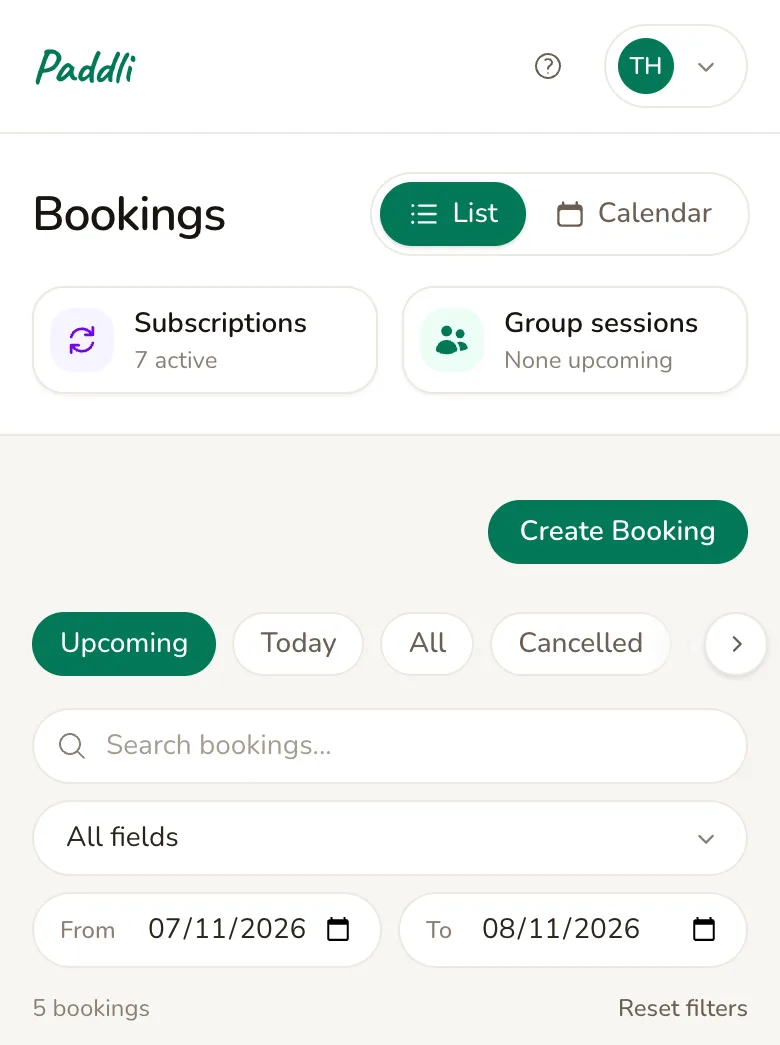
The switch at the top shows your bookings as a List or on a Calendar. Paddli remembers which you used last and opens the page that way next time.
Under the title are shortcuts to your Subscriptions (weekly bookings) and your Group sessions, with a count of each. You may see other shortcuts here too, depending on the features you use.
The list
Section titled “The list”The list shows one booking per row on a computer and one card per booking on a phone.
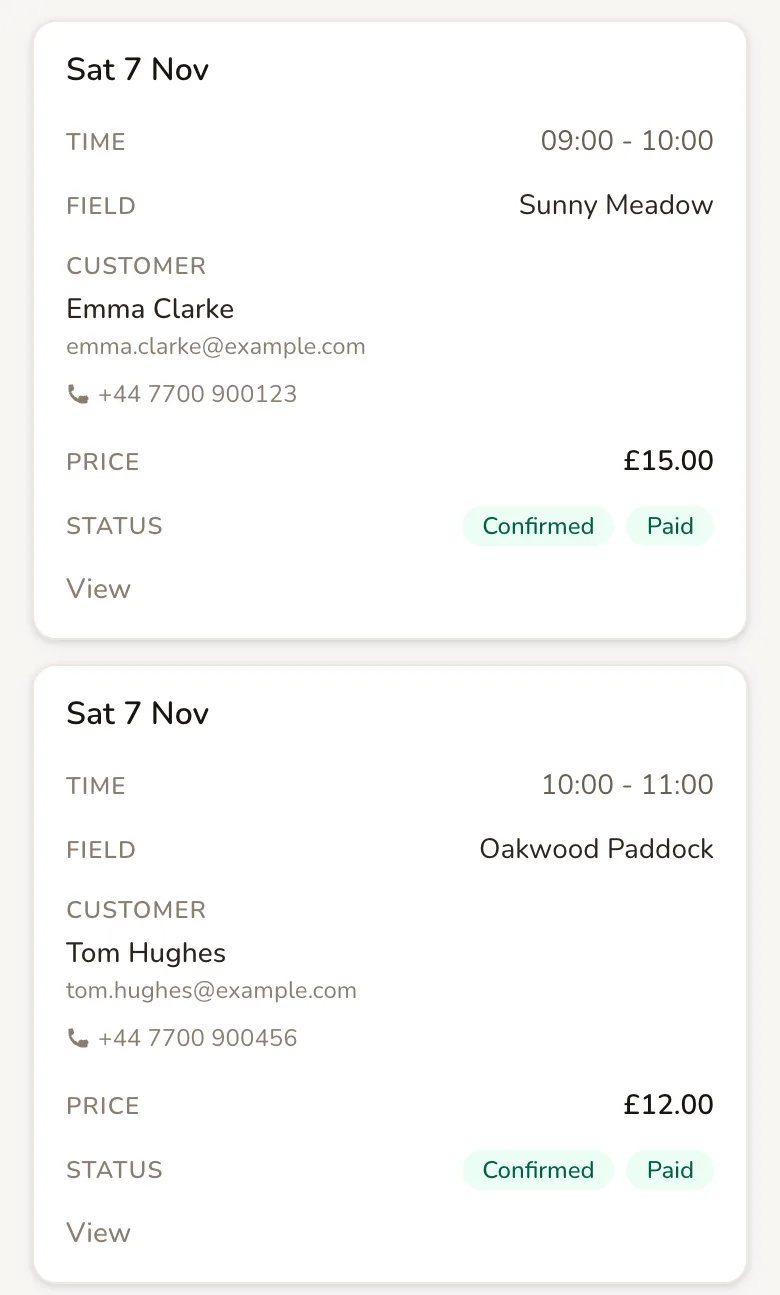
Each booking shows its date, time, field, customer, price and status. Tap the customer’s phone number to call them, or their name to open their customer page, which shows all their visits and payments. Tap View to open the booking.
The buttons along the top choose which bookings you see:
- Upcoming shows bookings that are going ahead, from today onwards, soonest first. This is what you see when you open the page.
- Today shows everything booked for today, including cancelled bookings.
- All shows every booking, newest first.
- Cancelled and Completed show only bookings with that status.
To narrow the list down further:
- Search bookings… finds bookings by the customer’s name or email address, or by the field’s name.
- The All fields menu shows one field at a time. It only appears when you have more than one field.
- From and To show bookings between two dates.
When a search or filter is on, the number of bookings found appears below it, with Reset filters to clear them. The list refreshes itself every minute, so new bookings appear without you reloading the page.
When you tap ← Bookings on a booking, you go back to the list or calendar exactly as you left it, filters and all.
What the labels mean
Section titled “What the labels mean”Every booking has one of three statuses:
- Confirmed means the booking is going ahead.
- Completed means the session has finished. Paddli marks paid bookings as completed a few minutes after they end, so you do not need to do anything.
- Cancelled means the booking was cancelled, by you, by the customer or by Paddli.
Bookings paid through Paddli also show how the payment stands:
- Paid means the customer has paid.
- Pending and Awaiting Payment mean the payment has not gone through yet.
- Failed means the payment did not go through.
- Refunded and Partially Refunded mean some or all of the money has gone back to the customer.
- No Charge means the booking was free, for example one made before you finished connecting Stripe.
A few more labels tell you what kind of booking it is:
- Manual is a booking you added yourself with Create Booking. Its price shows as Paid outside Paddli.
- Sub is a session from a weekly subscription.
- Multi is one of several sessions the customer booked and paid for together.
- Group is a place in a group session.
- Docs outstanding and Details outstanding mean the customer still needs to upload a document or tell you about their dogs before the session.
The calendar
Section titled “The calendar”Tap Calendar at the top of the page to see your bookings laid out by day.
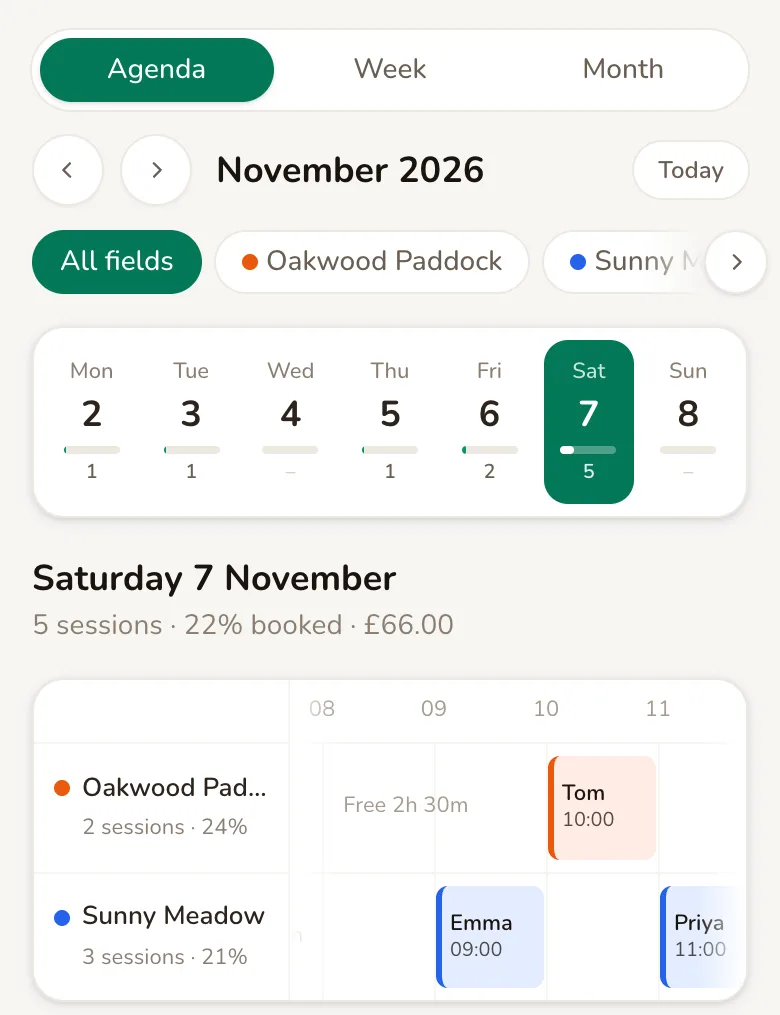
Choose how much to see at once:
- Agenda shows one day in detail. On a phone, a strip of the week along the top shows how many bookings each day has; tap a day to open it.
- Week shows a week as a grid of times. On a phone you see three days at a time and swipe for the rest.
- Month shows the whole month, with how full each day is. Tap a day to see its bookings.
The arrows move backwards and forwards, and Today brings you back to today. If you have more than one field, each field has its own colour, and the field buttons choose which fields to show.
Each day starts with a summary: how many sessions are booked, how full the day is, and what the day’s bookings are worth. Below it, the day’s bookings are grouped into Morning, Afternoon and Evening.
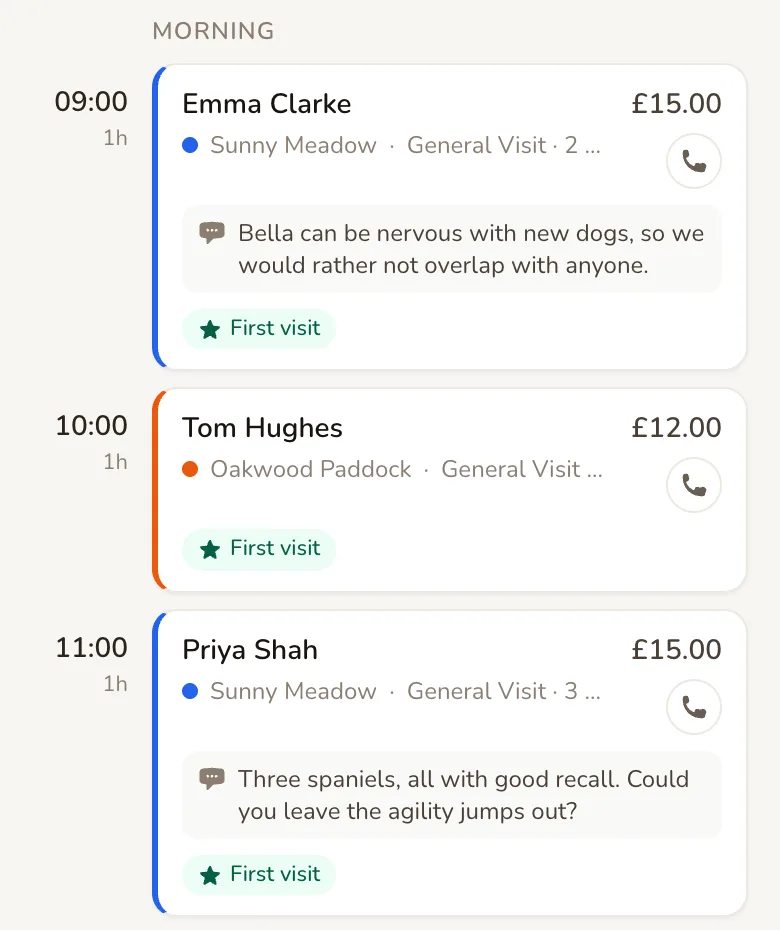
Each booking shows the customer’s name, the field, the session type, the number of dogs, the price, the customer’s notes and a button to call them. Labels on the booking flag anything to know before the session:
- First visit means this is the customer’s first booking with you.
- Documents missing and Dog details missing mean the customer still has something to send you.
- Awaiting payment means the booking is not paid yet.
- Subscription means it is a session from a weekly subscription.
Tap a booking to open it. The calendar also shows group sessions, events, maintenance and days you are closed, and it refreshes itself every minute.
Cancelled bookings are not shown on the calendar. When a day has any, a line such as 1 cancelled booking not shown with a View link takes you to them in the list.
Open a booking
Section titled “Open a booking”Tap View in the list, or tap a booking on the calendar, to open its page.
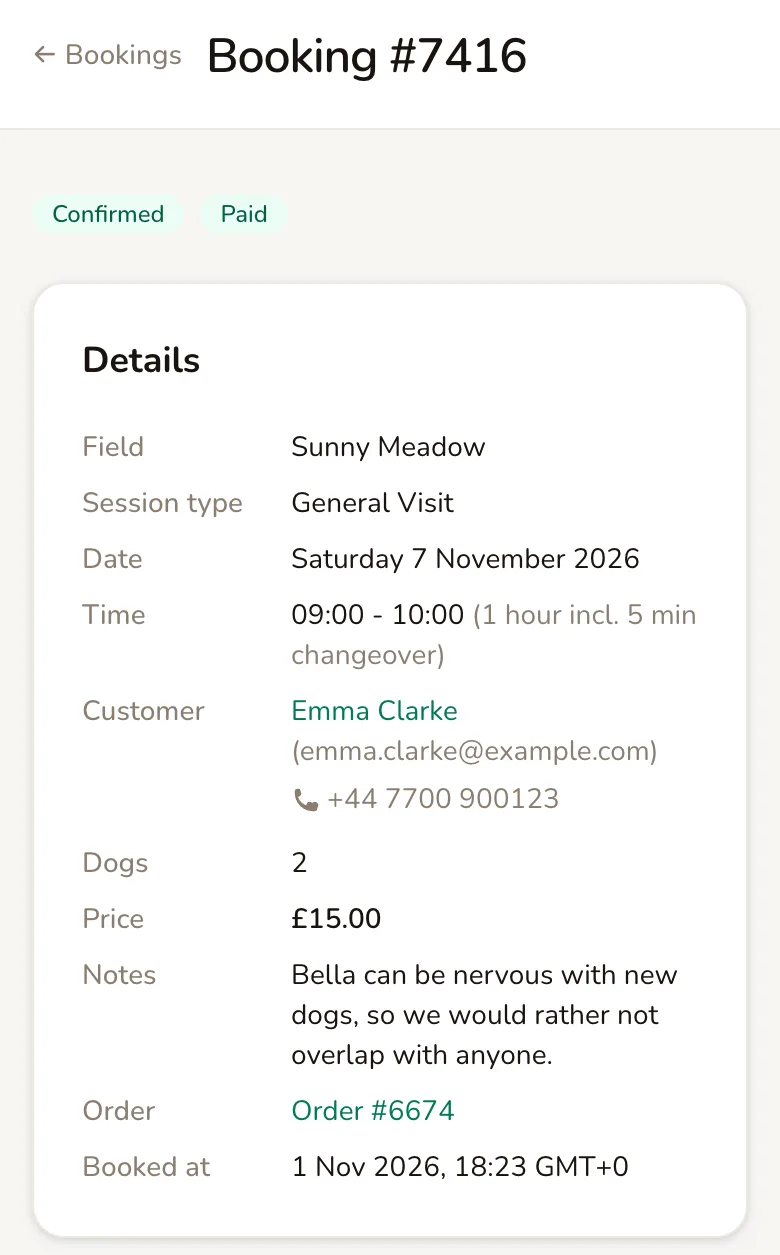
The Details card has everything about the session: the field, session type, date and time, the customer’s contact details, the number of dogs, the price and any notes the customer left. If your field asks for dog details, the dogs’ names and breeds are listed too.
Further down the page you may see:
- Pricing breakdown, which shows what the customer paid for, line by line.
- Documents, if your field asks customers for documents such as vaccination records.
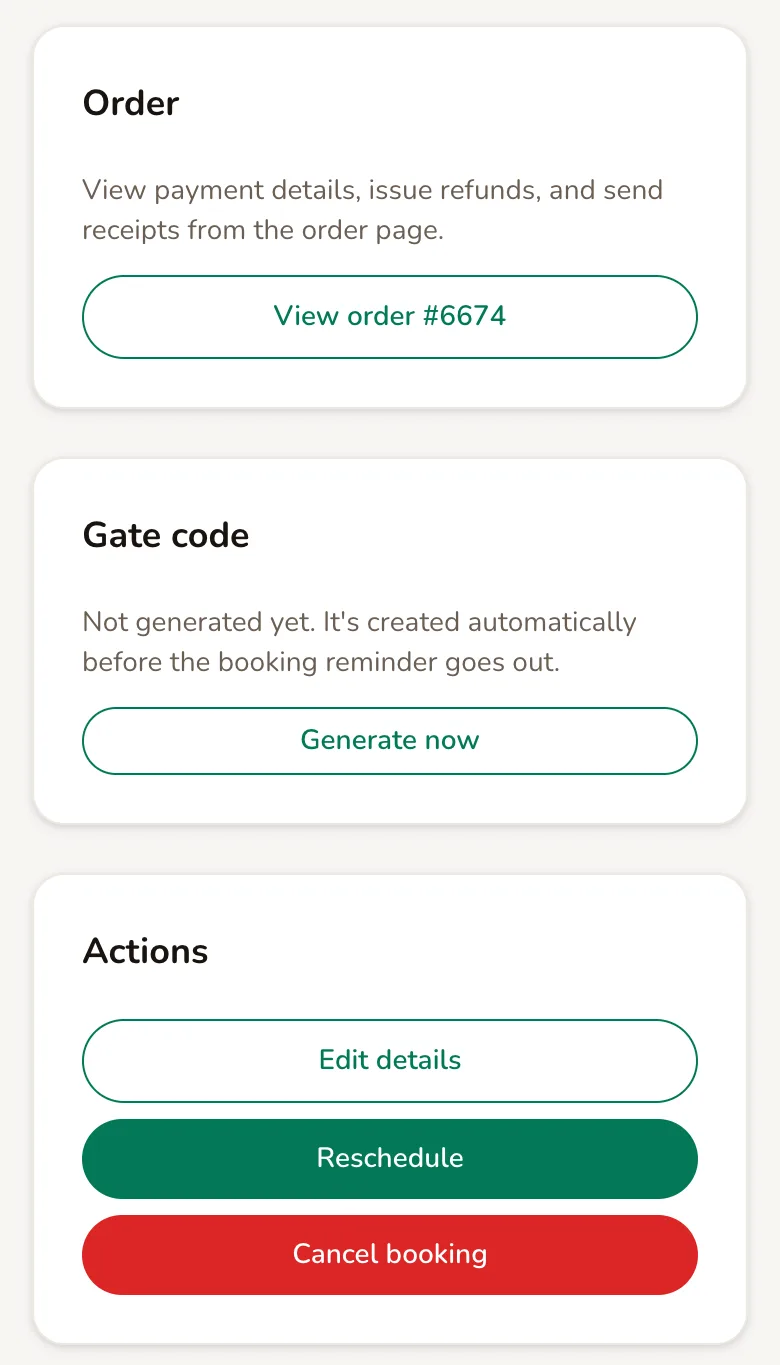
- Gate code, if your field has a smart lock. It shows the code the customer will be sent, or a Generate now button if it has not been made yet.
- Order, with a button to the order page, covered below.
Change a booking
Section titled “Change a booking”Changes are made in the Actions card at the bottom of the booking. Only bookings that are still Confirmed can be changed. Once a booking is completed or cancelled, the card says No actions available for this booking.
Edit the details
Section titled “Edit the details”Tap Edit details to change the number of dogs or the customer’s notes. If your field asks for dog details, you can also fill in each dog’s name and breed here.
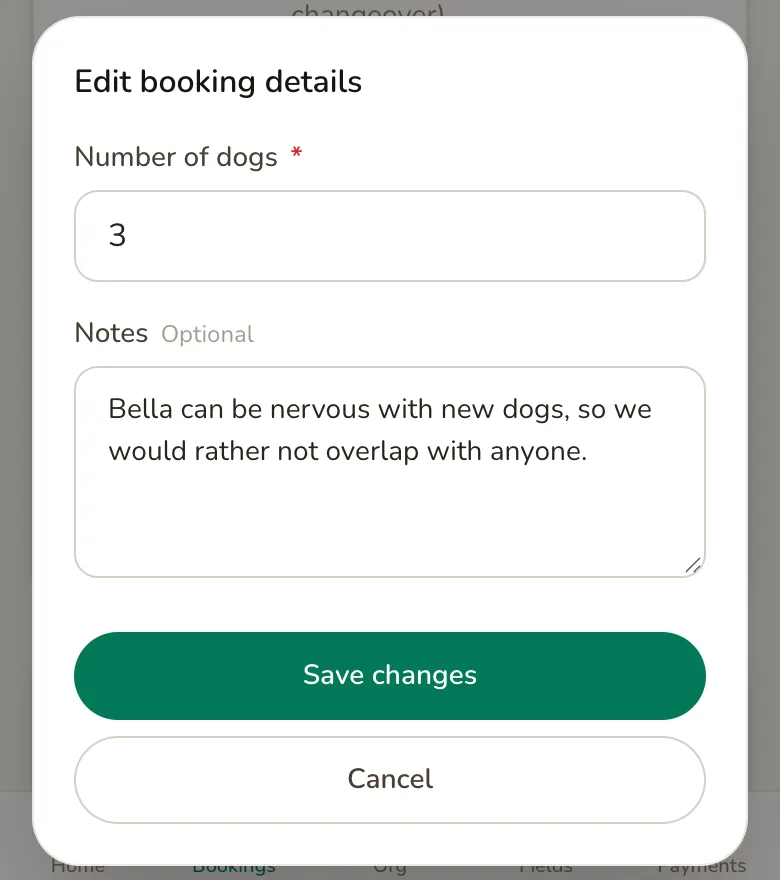
Tap Save changes and you will see Booking details updated.
Two things to know before you do:
- The price does not change. If you add a dog, the customer is not charged for it, and if you remove one, they are not refunded. Paddli cannot take or return the difference: Not yet.
- The customer is not told. Editing the details sends them nothing, so let them know yourself if it matters.
There is no check against your field’s maximum number of dogs here, so make sure the new number works for you.
Move it to another time
Section titled “Move it to another time”Tap Reschedule, choose the New date, and Paddli shows the Available times on that day for the same field. Tap a time, then tap Reschedule.
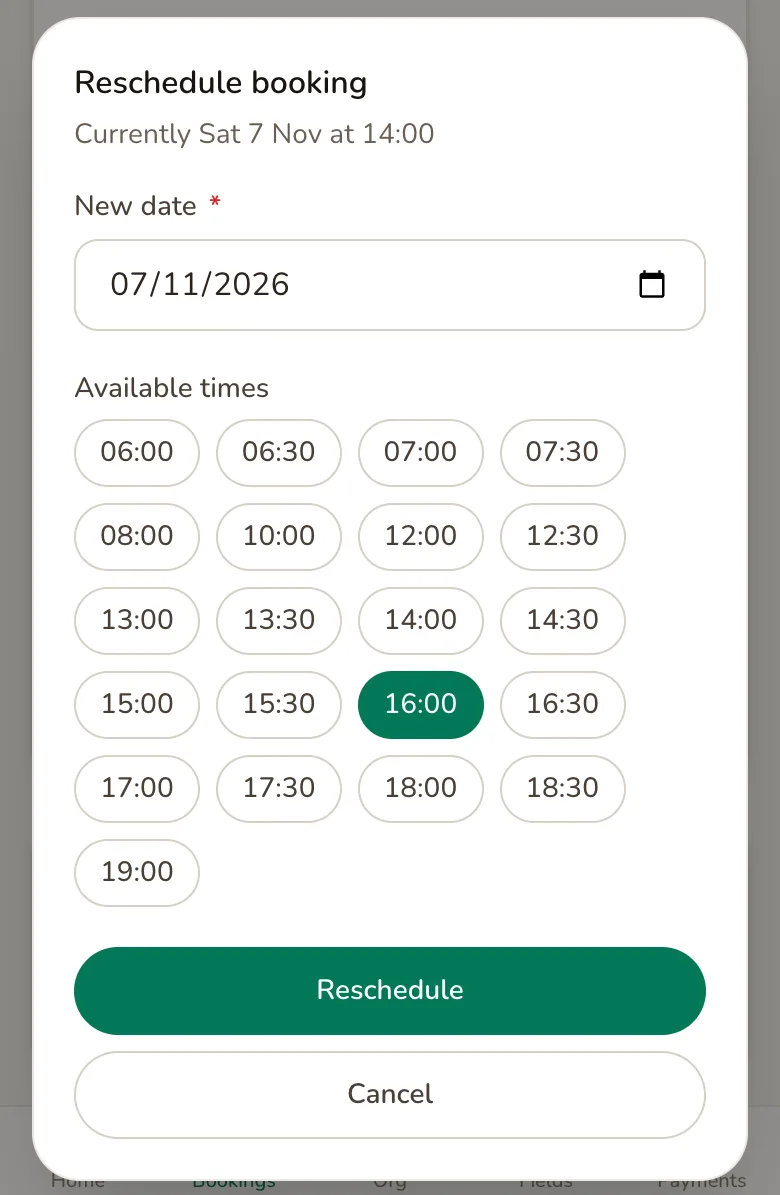
You will see Booking rescheduled., and the customer gets a Booking Rescheduled email with the old and new times. If you send booking confirmations by text message, they get a text too. If your field has a smart lock, the customer is sent a fresh reminder with the gate code for the new time.
The price stays as it was, even if the new time would normally cost more or less. Customers who move their own bookings can only choose times at the same price, but you can choose any free time.
You can only move a booking to another time on the same field. Moving it to a different field: Not yet. Cancel it and add a new booking instead.
Reschedule does not appear for weekly subscription sessions or event bookings. To change a subscription session, cancel that session and ask the customer to book the new time.
Cancel a booking
Section titled “Cancel a booking”Tap Cancel booking. Paddli asks you to confirm and tells you what will happen.
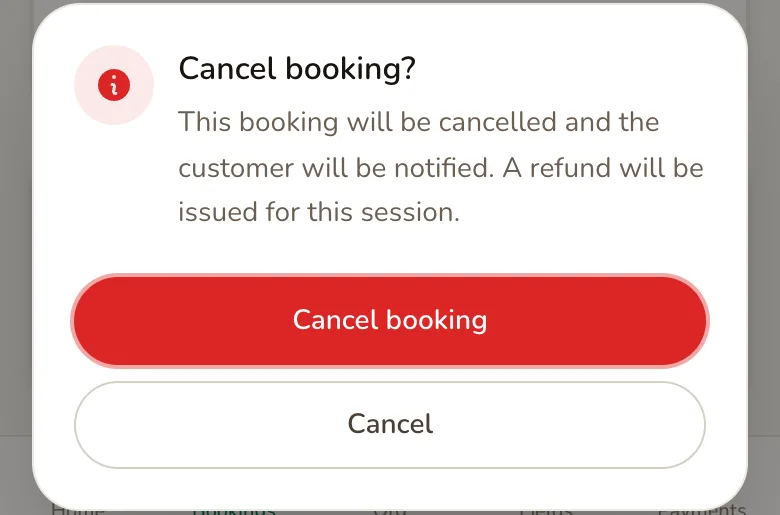
Tap Cancel booking in the dialog and you will see Booking cancelled.
You can cancel at any time, even inside your field’s notice period: that only limits customers.
When you cancel a booking paid through Paddli, the customer is always refunded in full for that session:
- The amount they paid by card goes back to their card through Stripe.
- Any amount they paid with a gift voucher goes back onto the voucher.
- If the session was one of several paid for together, only that session is refunded and the rest of the order stays booked.
- Manual bookings were paid outside Paddli, so no refund is made. Settle up with the customer yourself.
Paddli returns its fee for the cancelled session, apart from any text message charges, which are kept because the messages have already been sent. Stripe keeps its own card processing fee.
The customer gets a Booking Cancelled email saying their refund should arrive within 7 days, with a button to book another visit. You get a Booking Cancelled email too, if that alert is on under Organisation, then Notifications.
Cancelling without a refund, or adding a reason the customer can see: Not yet.
After a booking is cancelled, its page shows who cancelled it and the refund.
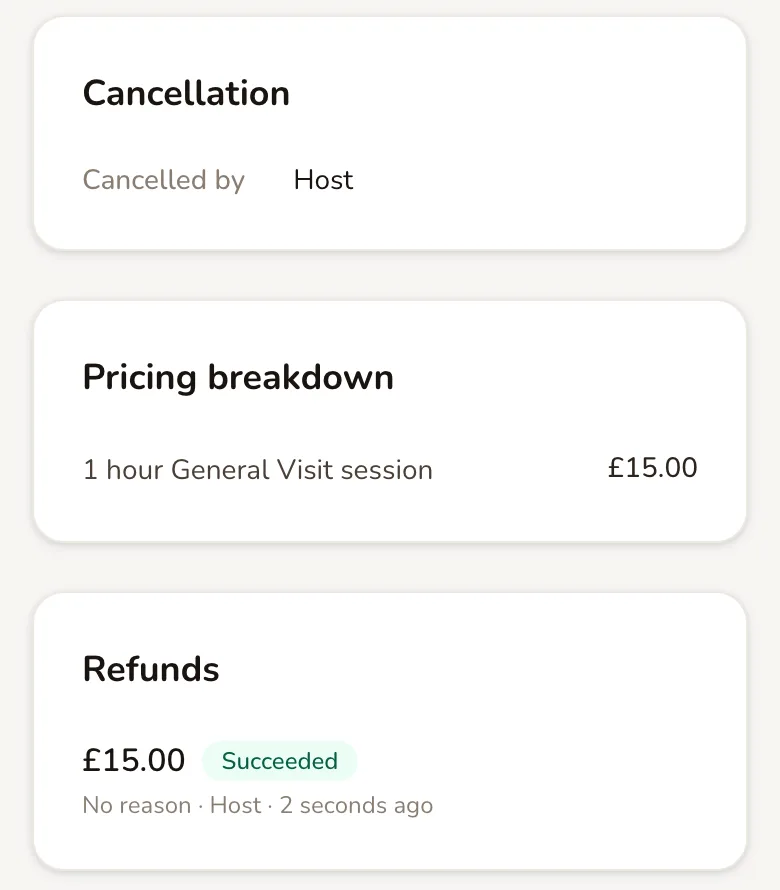
Cancelled by says Host when you cancelled, Customer when the customer did, and System when Paddli cancelled it, for example because the customer did not send a required document in time. The Refunds card shows the amount and whether it has gone through: Pending, Succeeded or Failed.
For a session from a weekly subscription, the Actions card has two buttons instead:
- Cancel session cancels this one session. The subscription carries on.
- Cancel subscription stops all future sessions. The customer keeps the session they have already paid for.
The order page
Section titled “The order page”Every booking made online belongs to an order: everything the customer paid for in one checkout. Tap View order on a booking to open it.
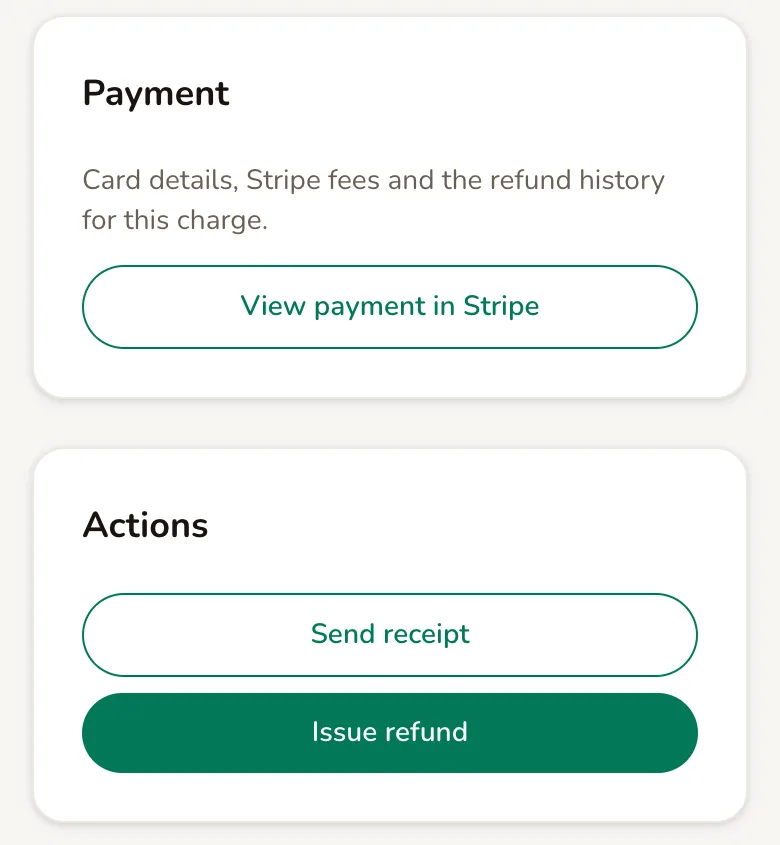
The order shows the customer, the Total they paid, any discount code or voucher they used, how much has been Refunded, and how much is still Refundable. Below that are the bookings in the order, each with its status.
- View payment in Stripe shows the card used, Stripe’s fee and the refund history for the payment.
- Send receipt emails the customer a receipt for the order. You will see Receipt sent to and their email address.
- Issue refund gives back part or all of the money without cancelling the booking. Choose an amount and a reason, then tap Issue refund. Paddli’s fee is not returned on these refunds, so if the session is not going ahead, cancel the booking instead.
Related
Section titled “Related”- Opening hours. The times customers can book, and the times you can reschedule to, come from your opening hours.
- Customers changing their own bookings. Customers can cancel or move their own bookings from Manage my booking. Choose whether they can, and how much notice they must give, under Fields, then your field, then Details, in Cancellations and Changes. Customer cancellations are refunded in the same way as yours.
- Manual bookings. Tap Create Booking above the list to add a booking that was paid outside Paddli, such as a phone booking paid in cash.
- Weekly subscriptions. Use the Subscriptions shortcut at the top of the page to see every weekly booking and its upcoming sessions.
- Discount codes. A booking made with a discount code shows the code and the amount taken off on its order page.
- Smart locks. The gate code for each booking is shown on the booking page. See getting started with smart locks.
- Your own calendar. To see a field’s bookings in Apple Calendar, Google Calendar or Outlook, go to Fields, then your field, and use Calendar feed on the Overview tab.
- Booking alerts. Choose which booking emails and texts you get under Organisation, then Notifications.
Frequently asked questions
If I cancel a booking, does the customer get their money back?
Yes. When you cancel a paid booking in Paddli, the customer is refunded in full for that session, back to the card they paid with. Any part they paid with a gift voucher goes back onto the voucher. They get a Booking Cancelled email that says their refund should arrive within 7 days. Manual bookings are paid outside Paddli, so nothing is refunded for them.
Can I cancel a booking without refunding the customer?
Not yet. Cancelling a paid booking always refunds that session in full. If you want to keep some of the money, leave the booking as it is, or speak to the customer first. The reverse is possible, though. On the order page, Issue refund gives back part or all of the money and leaves the booking in place.
Do I get Paddli's fee back when I cancel a booking?
Yes, mostly. When you cancel a booking, Paddli returns its fee for that session, apart from any text message charges, because those messages have already been sent. Stripe keeps its own card processing fee. If you use Issue refund on the order page instead of cancelling, Paddli's fee is not returned.
Can I move a booking to a different time?
Yes. Open the booking, tap Reschedule, choose a new date and one of the available times, then tap Reschedule again. You can move it to any free time on the same field. The price stays the same, and the customer is emailed the old and new times. Weekly subscription sessions and event bookings cannot be moved this way.
Will the customer know if I change their booking?
It depends on the change. Rescheduling and cancelling always email the customer. Edit details, which changes the number of dogs or the notes, does not send them anything, so tell them yourself if it matters.
A customer is bringing an extra dog. Can I charge them for it?
Not yet. You can change the number of dogs with Edit details, so the booking shows the right number, but the price does not change and Paddli cannot take the difference. If the extra dog costs more, you could cancel the booking, which refunds it, and ask the customer to book again with the right number of dogs.
Can I export my bookings to a spreadsheet?
Not yet. The Bookings page has no export. You can download your customers as a CSV file, with their first and last booking dates and how many times they have booked, from Organisation, then Integrations, then Export data.
Why can't I see a cancelled booking on the calendar?
The calendar only shows bookings that are going ahead. Under each day's bookings, a line such as 1 cancelled booking not shown, with a View link, takes you to that day's cancelled bookings in the list. You can also tap Cancelled in the list to see every cancelled booking.